
Videos
Upload a video
Add a video to one of your channels and decide when it goes live.
Before you start
By the end your video is processing and will appear on its channel when it is ready.
Before you start
- You have an upload role on at least one channel (owner, channel manager or video editor).
- Have the video file ready: MP4, MOV, AVI or WebM, up to 10 GB.
Steps
Step 1: Choose Create in the header, or Upload Video on your channel
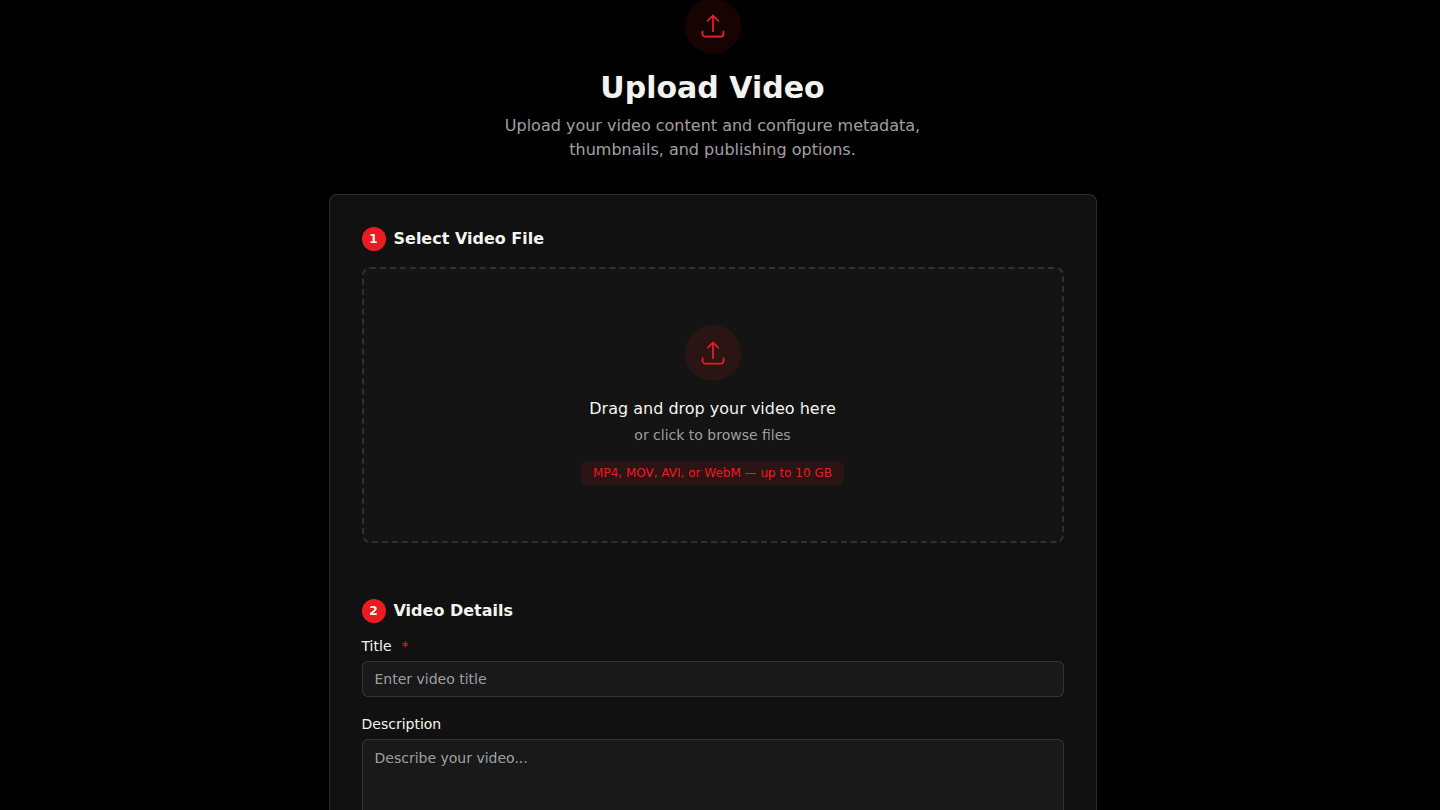
Choose Create in the header, or Upload Video on your channel page. Drag your file onto the upload area or click it to browse. MP4, MOV, AVI and WebM up to 10 GB are accepted.
Step 2: Enter the title, description and channels
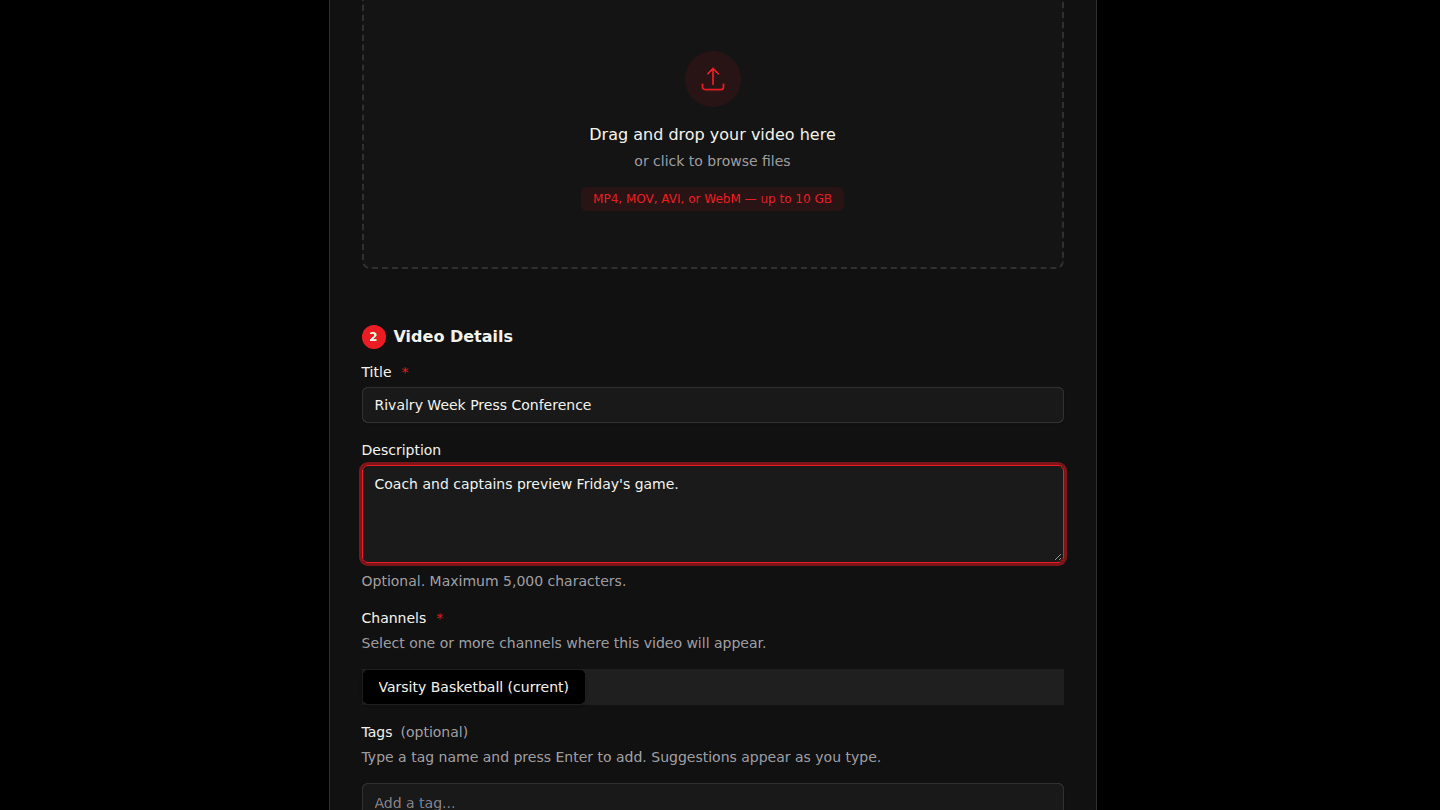
Enter a Title and Description. Under Channels pick every channel the video should appear in; one is preselected when you start from a channel page.
Step 3: Choose how to publish, then Upload Video
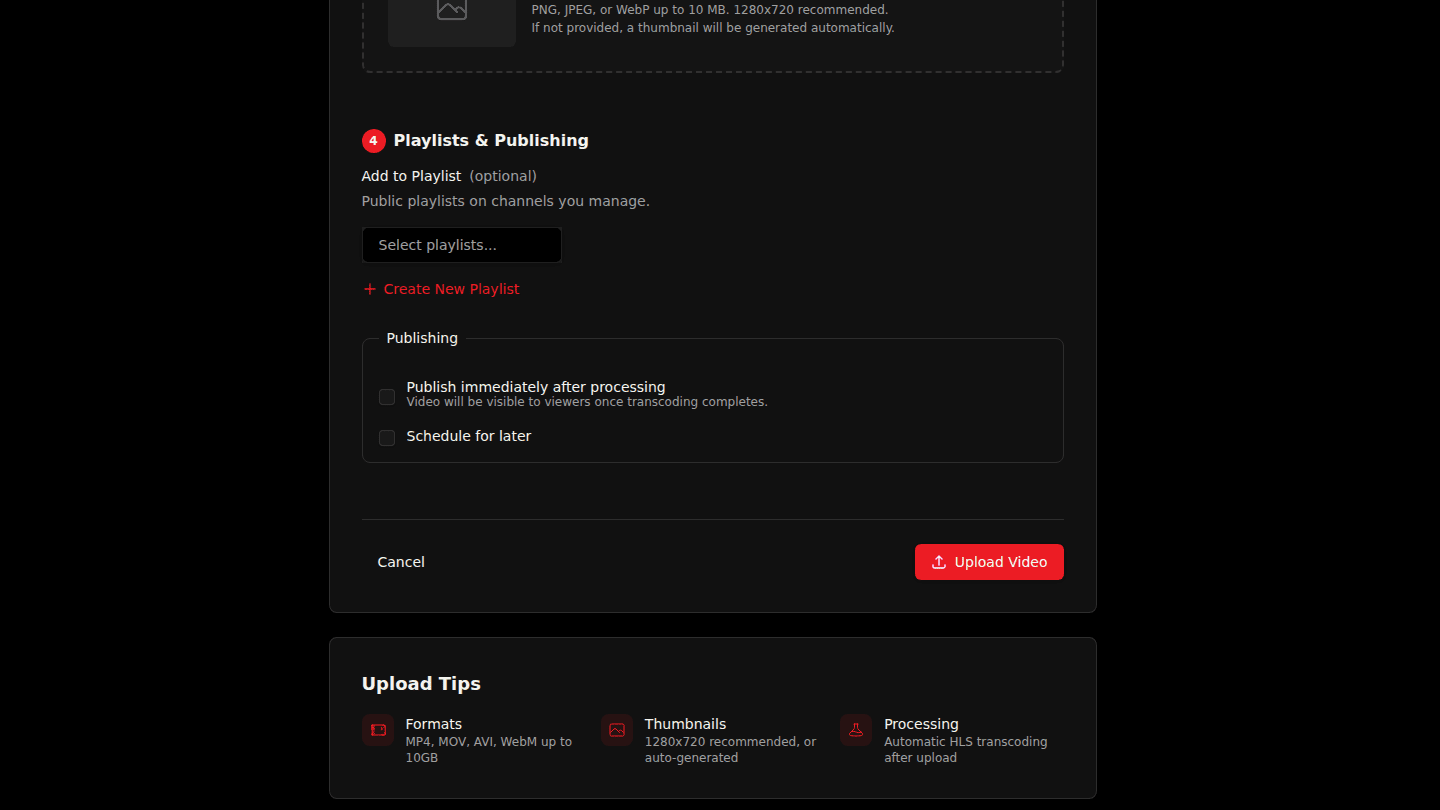
Under Publishing tick Publish immediately after processing, or Schedule for later to set a start and end date. Choose Upload Video.
Step 4: Wait for the confirmation
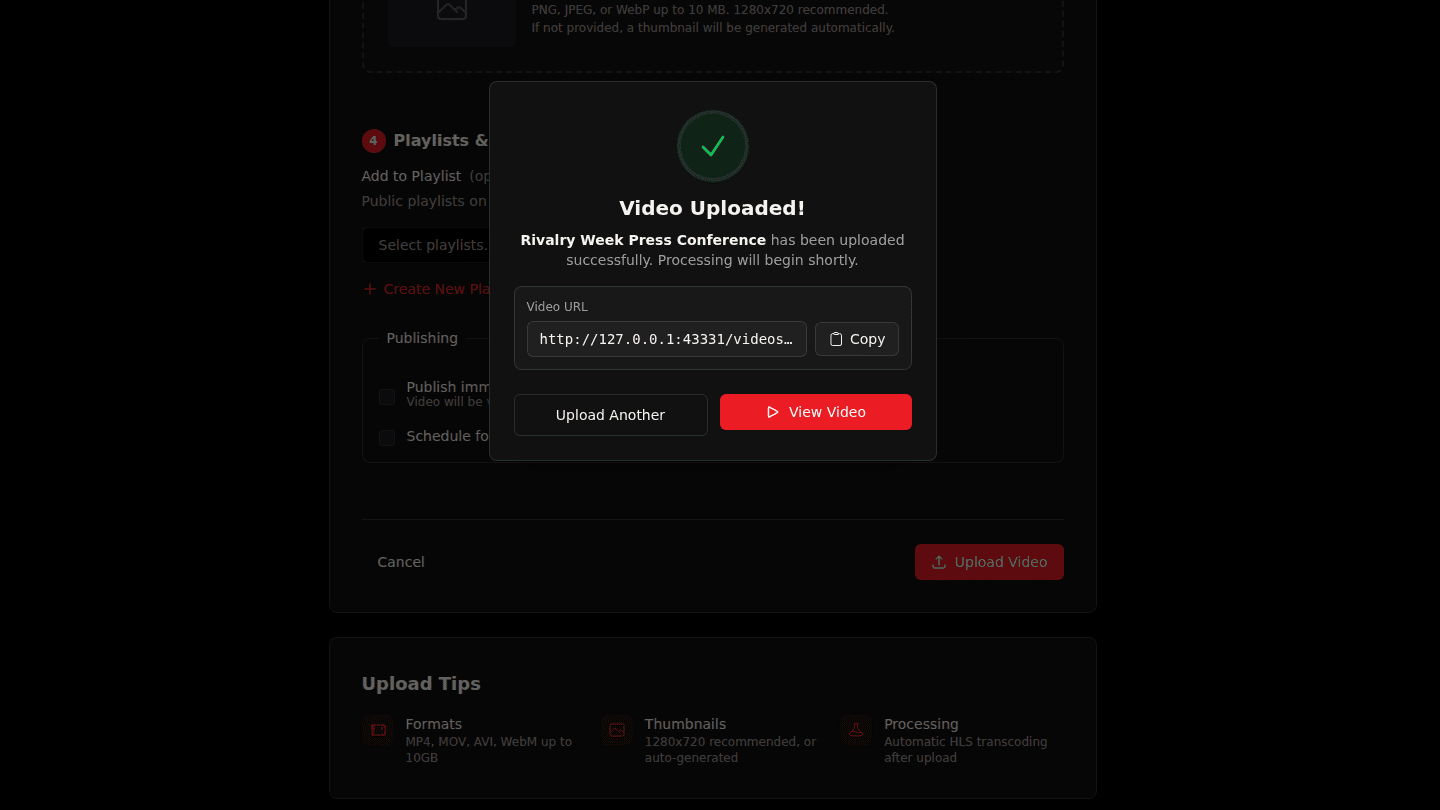
The confirmation shows the video's address. Processing takes a few minutes; open View Video to watch progress. Viewers see the video once processing finishes and it is published.
You should see
Video Uploaded! with the video's address. On the video page you see Processing video until the file is ready.
How it works
Uploading does not make a video free or paid. A new video is paywalled until you create an offer or its channel is free; see How the paywall works.