
Videos
Choose a thumbnail
Pick or upload the image viewers see before they press play.
For creators
Roles: Owner, Channel manager, Video editor
Before you start
By the end the video shows the thumbnail you chose on channel pages, in search and in the player.
Before you start
- A 1280×720 image (JPG or PNG) if you want a custom thumbnail. Processing also generates thumbnails from the video automatically.
Steps
Step 1: Open Edit and scroll to Thumbnail
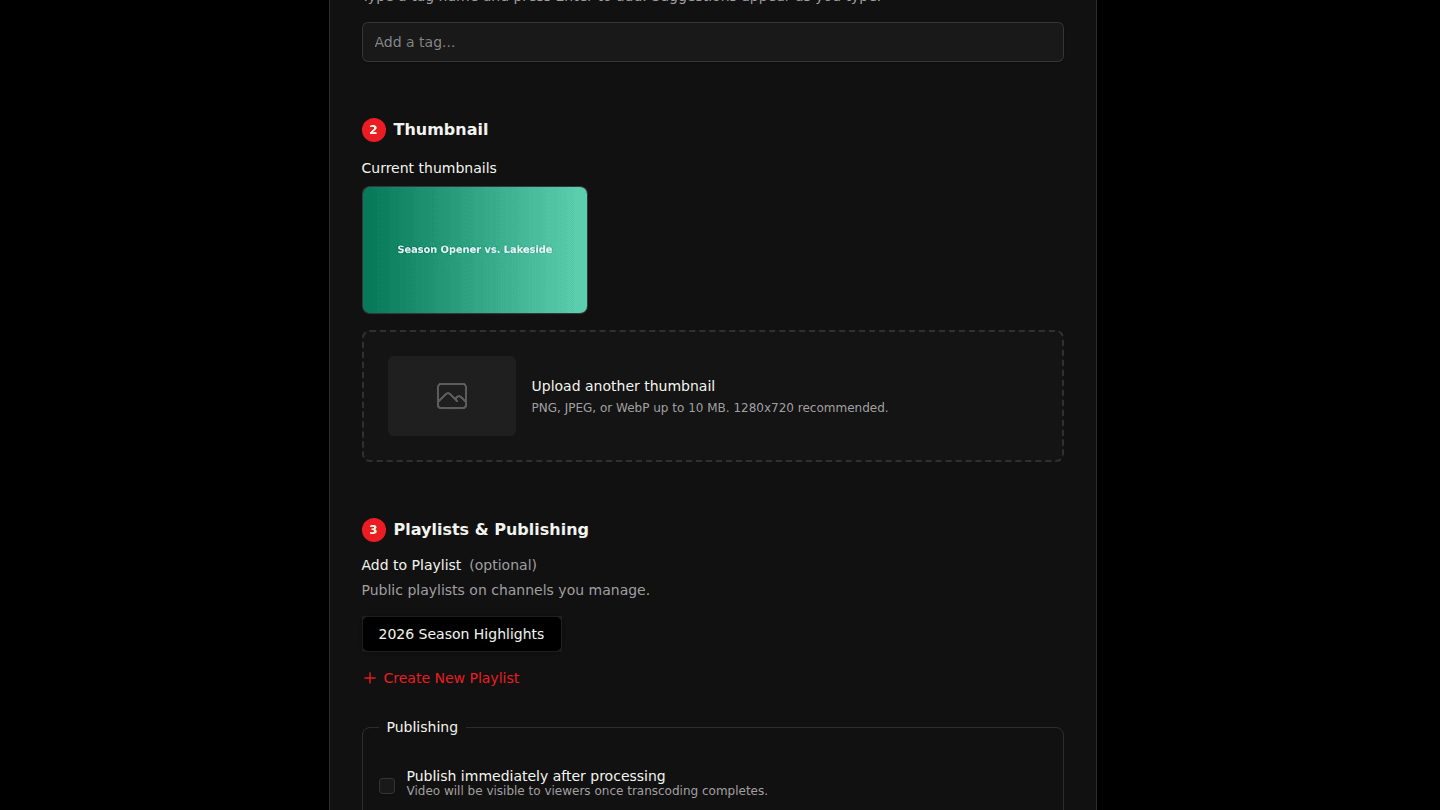
Open the video page, choose Edit and scroll to Thumbnail. Current thumbnails are shown; hover one and choose Remove thumbnail to drop it.
Step 2: Upload a custom thumbnail and choose Update Video
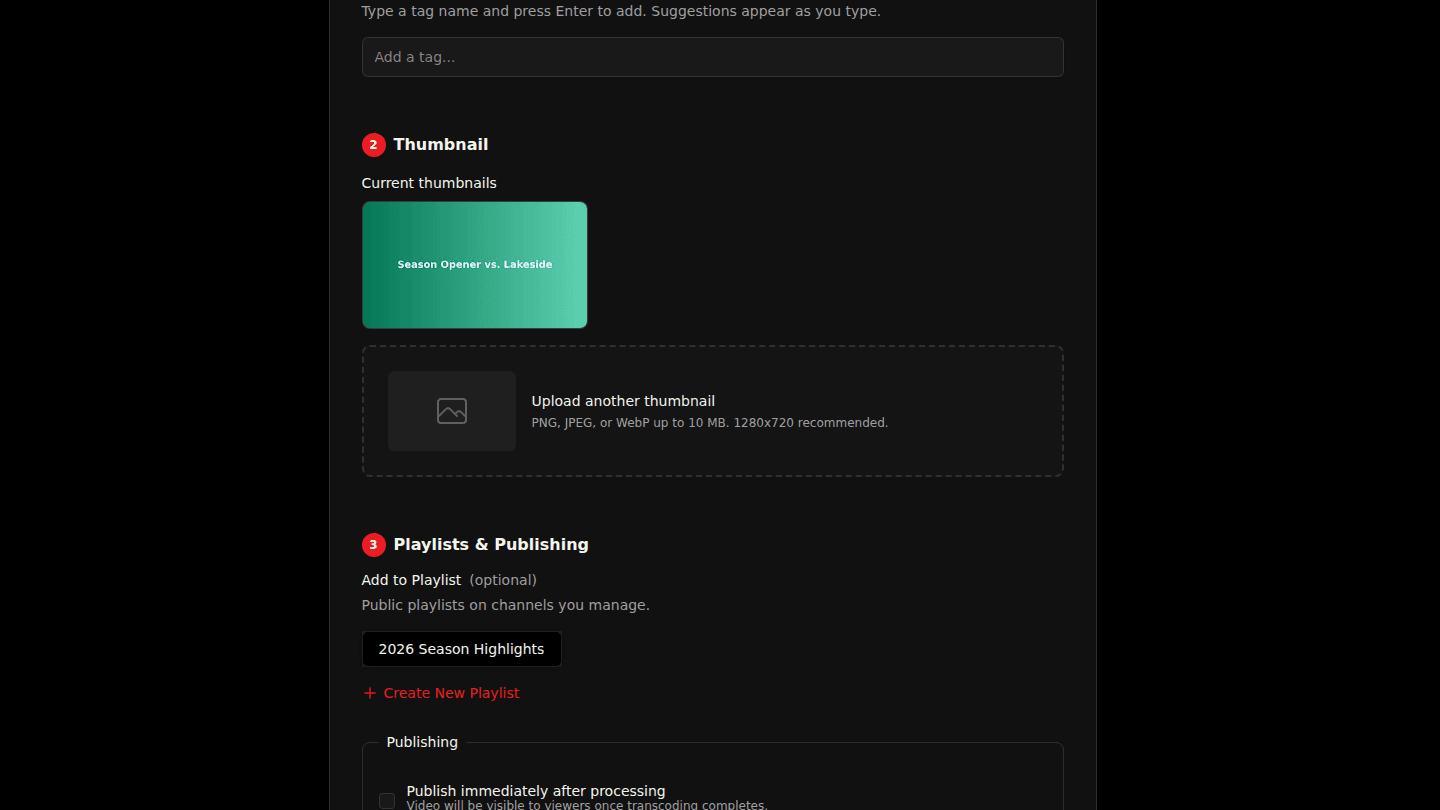
Drop an image onto Upload a custom thumbnail (or click it to browse), then choose Update Video. With more than one thumbnail, tick Auto-prioritize thumbnails to let the platform show the one viewers click most.
You should see
The new image under Current thumbnails and on the video card.
How it works
With more than one thumbnail and Auto-prioritize thumbnails on, the platform rotates them and settles on the one viewers click most. Analytics shows how each thumbnail performed.