
Videos
Publish or schedule a video
Make a processed video visible now, or set the window when it is visible.
For creators
Roles: Owner, Channel manager, Video editor
Before you start
By the end the video is visible to viewers, now or at the time you chose.
Before you start
- Processing has finished; a video cannot be published while it is processing.
Steps
Step 1: Open an unpublished video
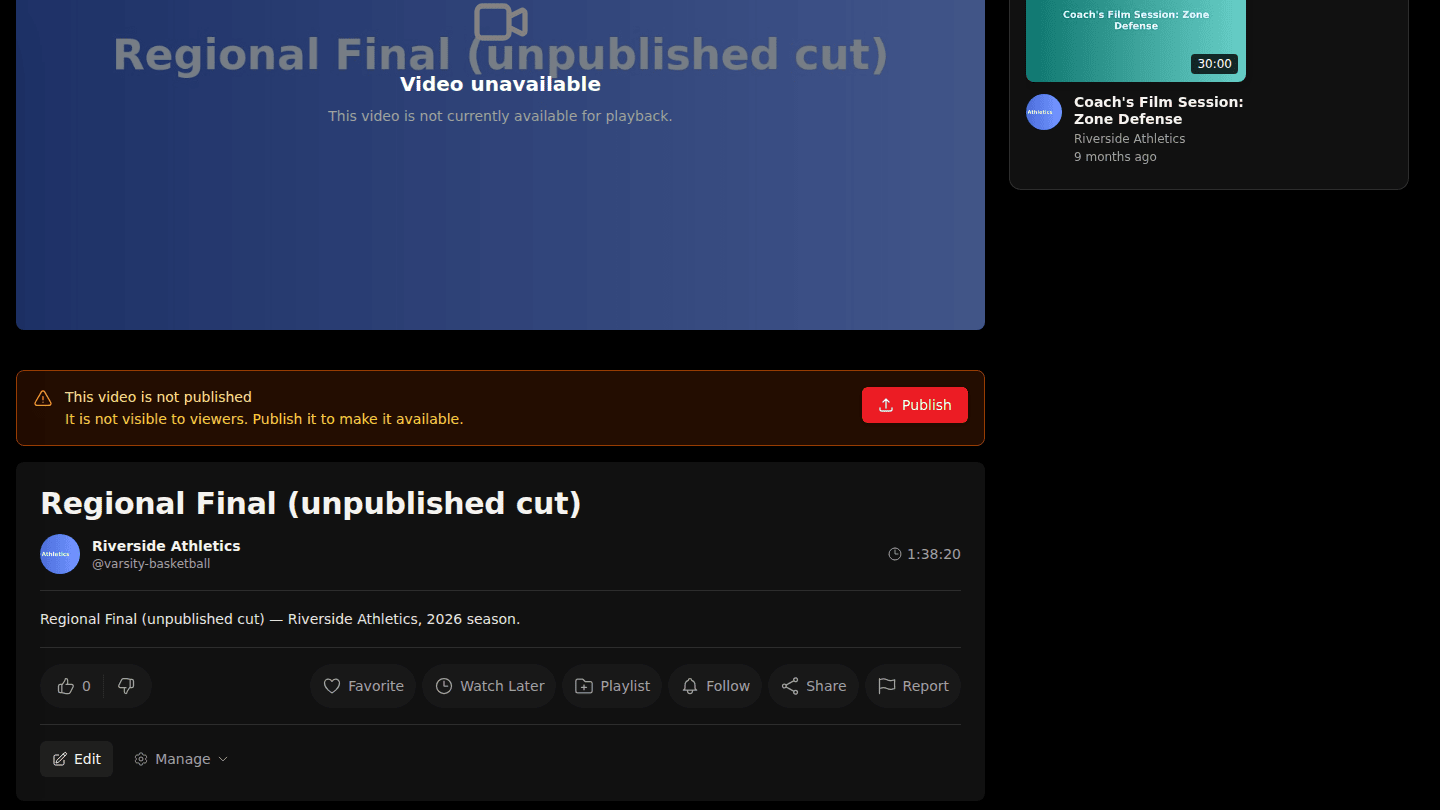
An unpublished video shows This video is not published at the top for you and your team only. Choose Publish to make it visible to viewers.
Step 2: The video is live
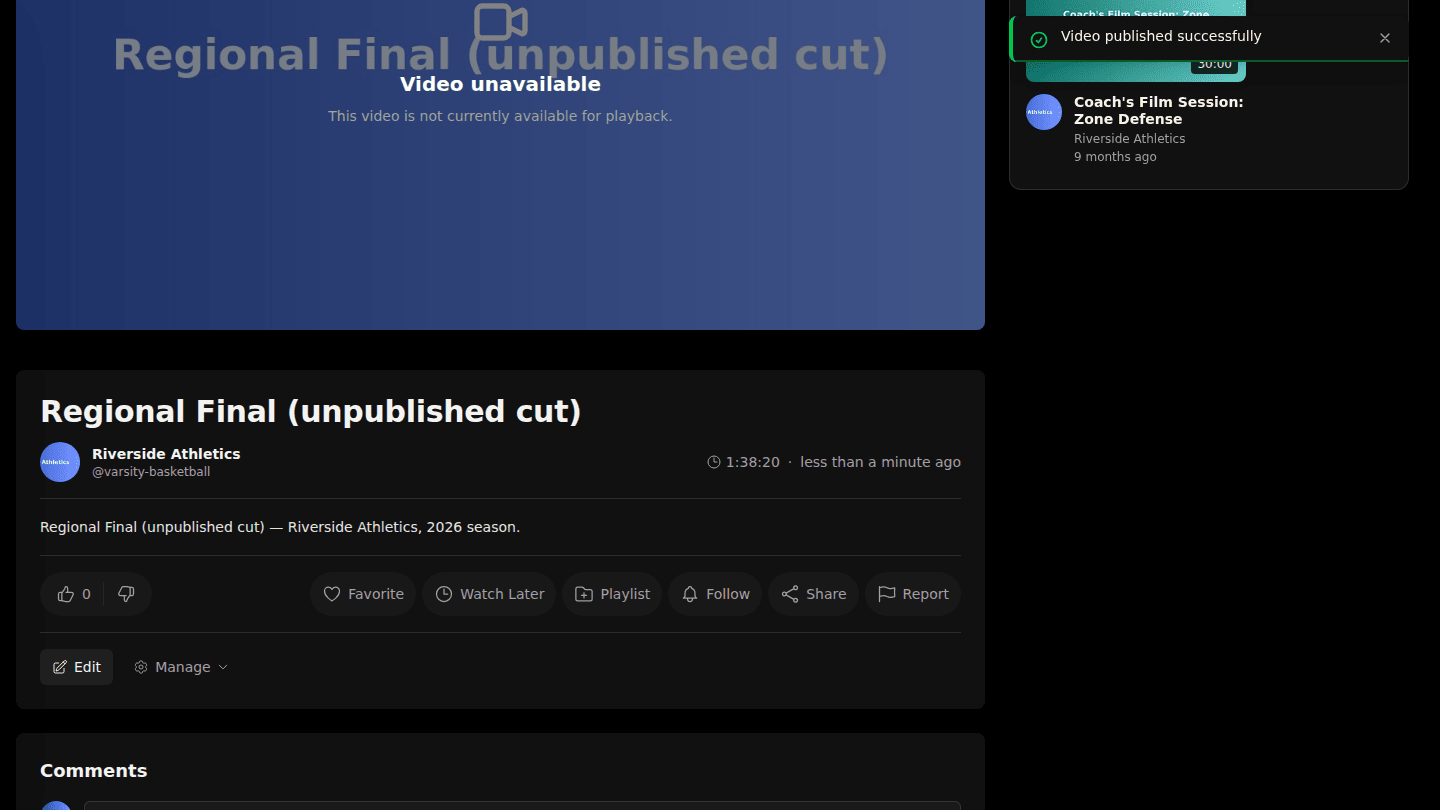
The banner disappears and the video appears on its channel and in search.
Step 3: To publish later, tick Schedule for later on the edit form
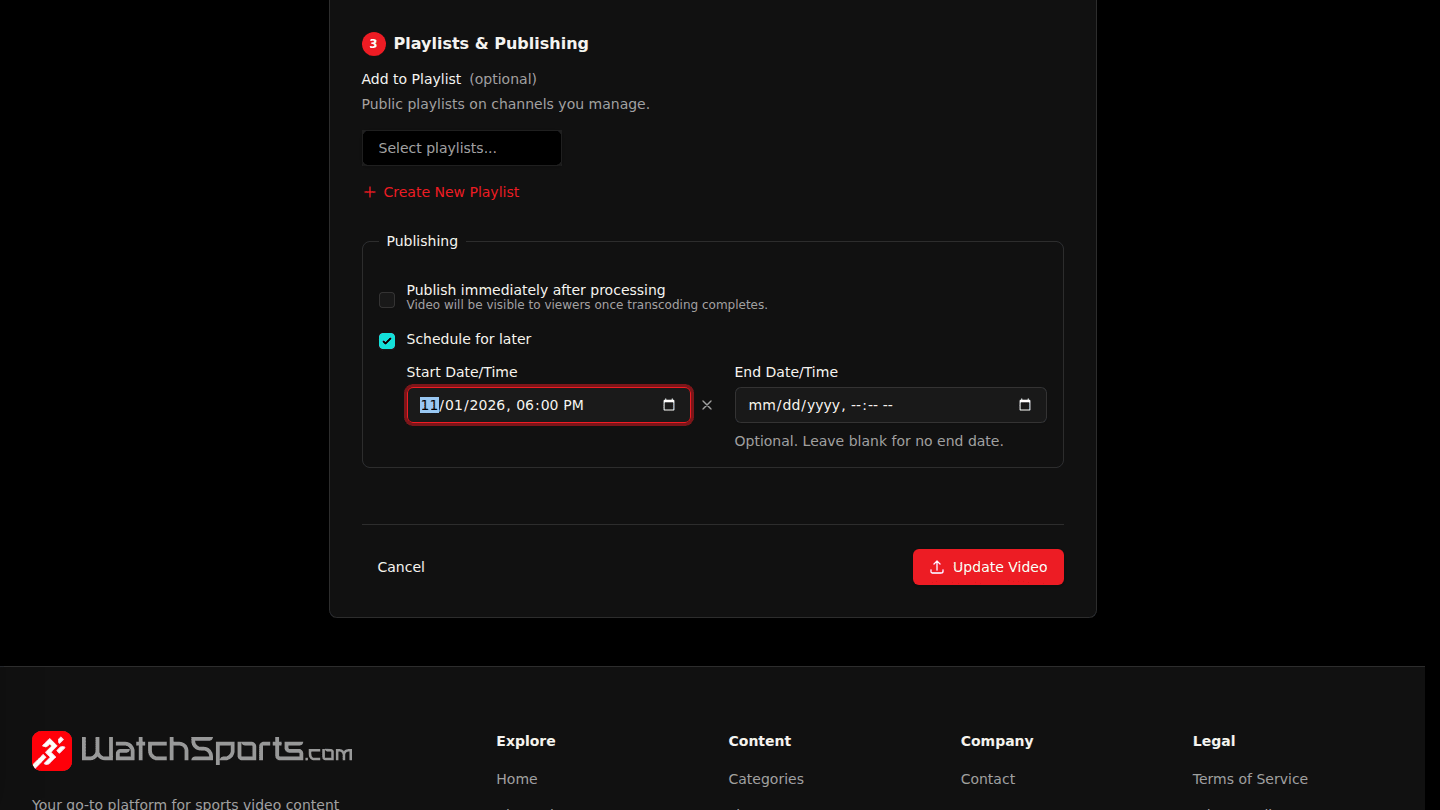
To publish at a set time instead, open Edit, tick Schedule for later under Publishing, set a Start Date/Time and an optional End Date/Time, then choose Update Video.
You should see
Video published successfully, and the video on its channel page. A scheduled video shows up when its start date arrives and disappears after the end date, if you set one.