
Selling your content
Sell a bundle
Sell a hand-picked set of channels or videos as one subscription.
Before you start
By the end one subscription unlocks exactly the channels and videos you chose, and nothing else.
Before you start
- You are an owner or accounting manager of the organization.
- Stripe is connected (Connect Stripe to get paid).
Steps
Step 1: Create a subscription offer on your organization
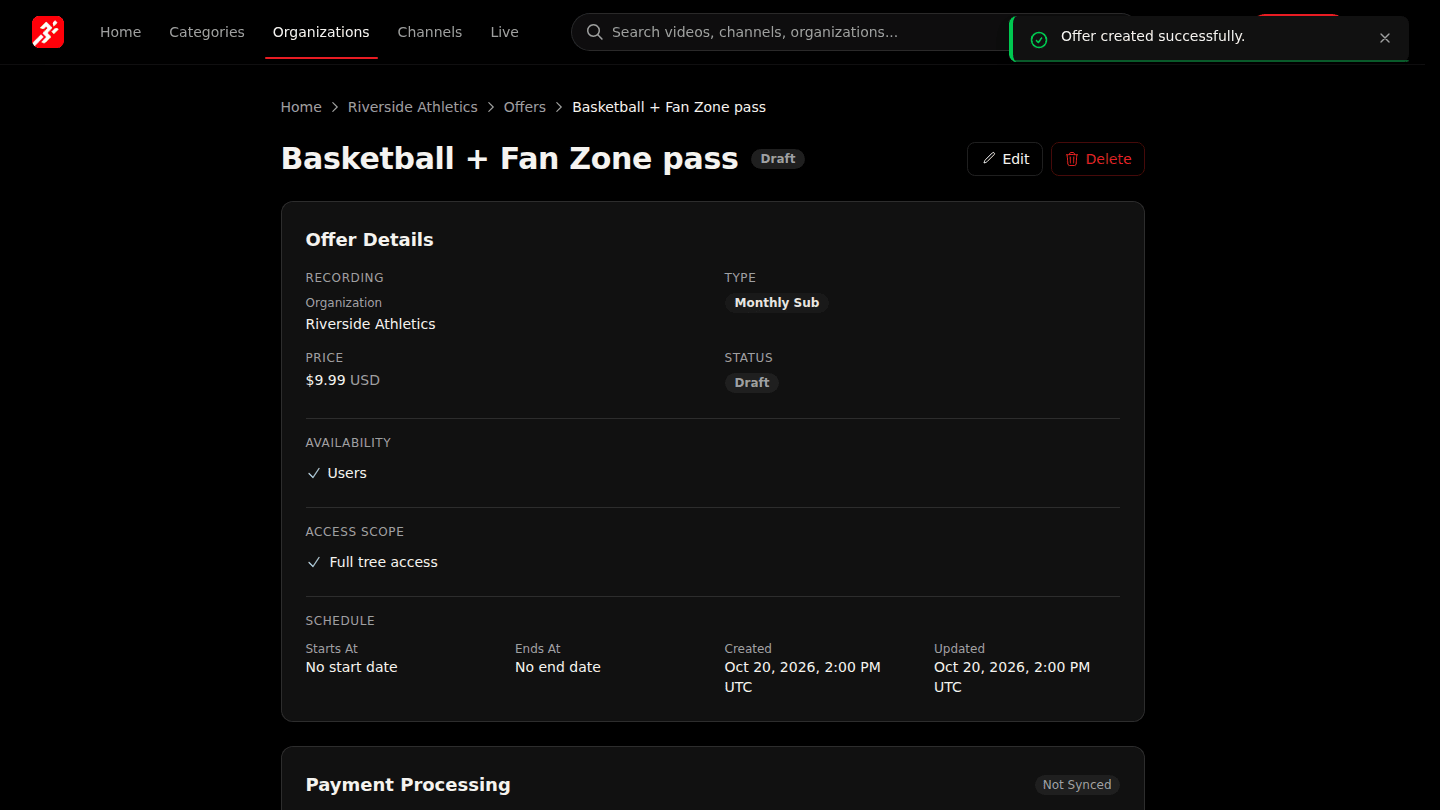
Choose Manage → Offers → New Offer and pick your organization under Recording. Set Offer Type to Monthly Subscription, enter the Price and a Title, then choose Create Offer.
Step 2: Edit the offer and untick Grant access to all content
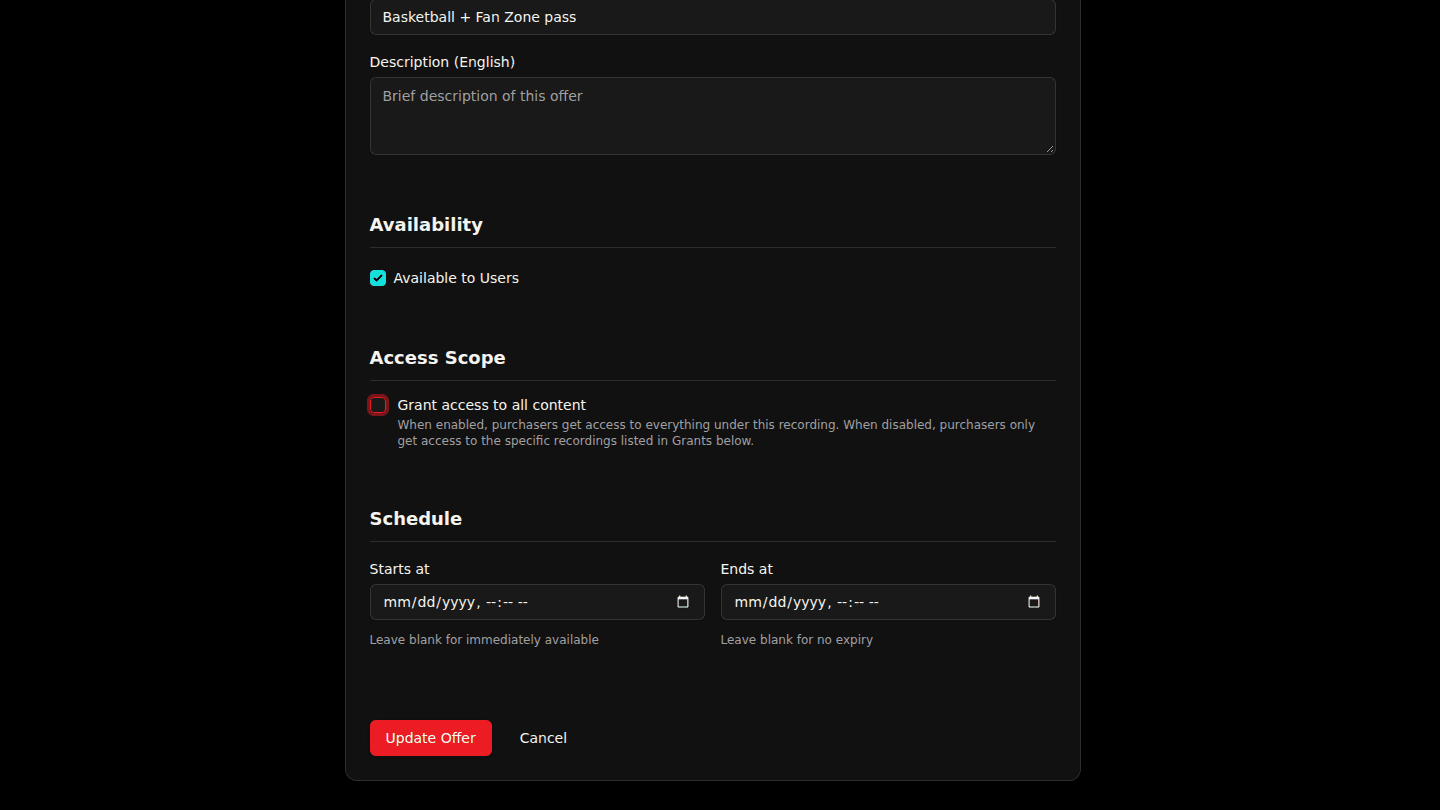
Choose Edit. Under Access Scope untick Grant access to all content and choose Update Offer. The offer now unlocks only the items you grant.
Step 3: Choose Update Offer
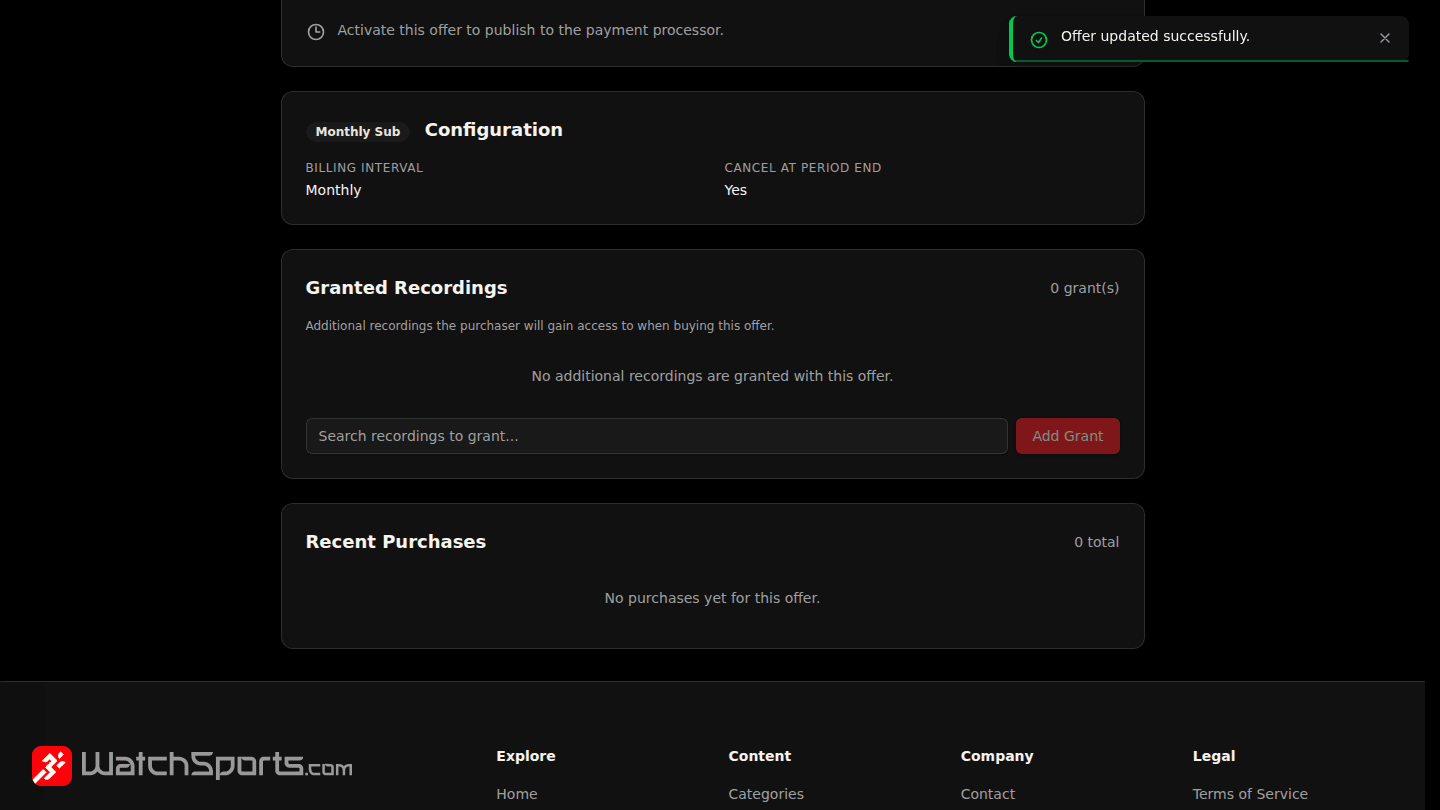
After saving, the offer page has a Granted Recordings section where you add what the bundle includes.
Step 4: Add each channel or video to Granted Recordings
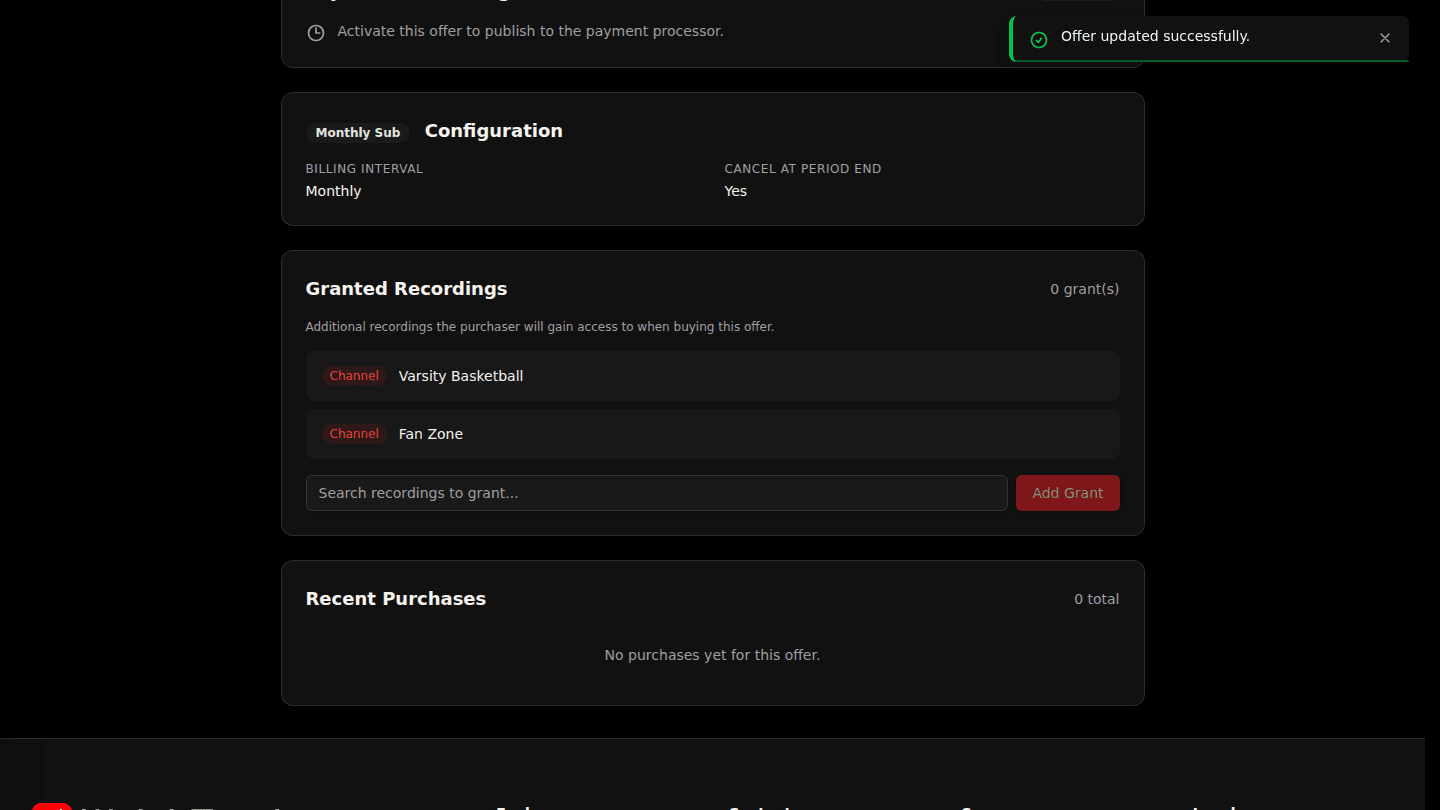
Search for a channel or video under Granted Recordings, pick it and choose Add Grant. Repeat for everything in the bundle. A bundle needs at least one grant before it can be activated.
You should see
Each granted channel or video listed under Granted Recordings on the offer page.
How it works
Offers on an organization or channel are subscriptions. With Grant access to all content on (the default) the subscription covers everything inside; with it off it covers only the Granted Recordings list, so you can sell "Channels A and B" without touching Channel C. You can add grants to an active offer later; existing subscribers get the new content automatically.