
Videos
Replace a video file
Swap in a new file while keeping the video's address, views and comments.
Before you start
By the end viewers watch the new file at the same address, and nothing else about the video changes.
Before you start
- You can edit the video, and it is not retired.
- The new file is ready: MP4, MOV, AVI or WebM.
Steps
Step 1: Open Edit and find Replace Video File
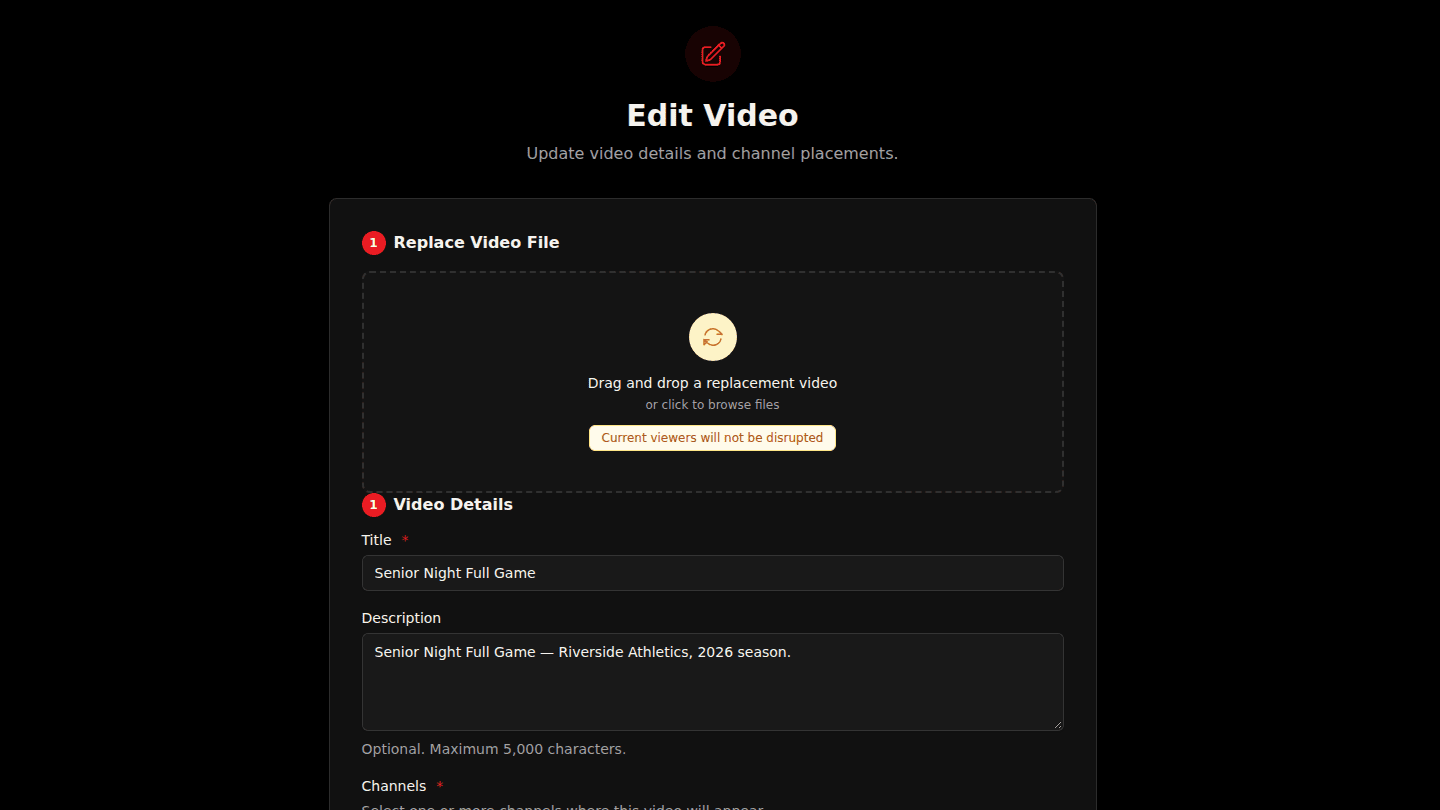
Open the video page and choose Edit. The Replace Video File section accepts a new file. The video keeps its address, views and comments, and viewers keep watching the current version until the replacement is ready.
Step 2: Drop the new file and choose Start Replacement
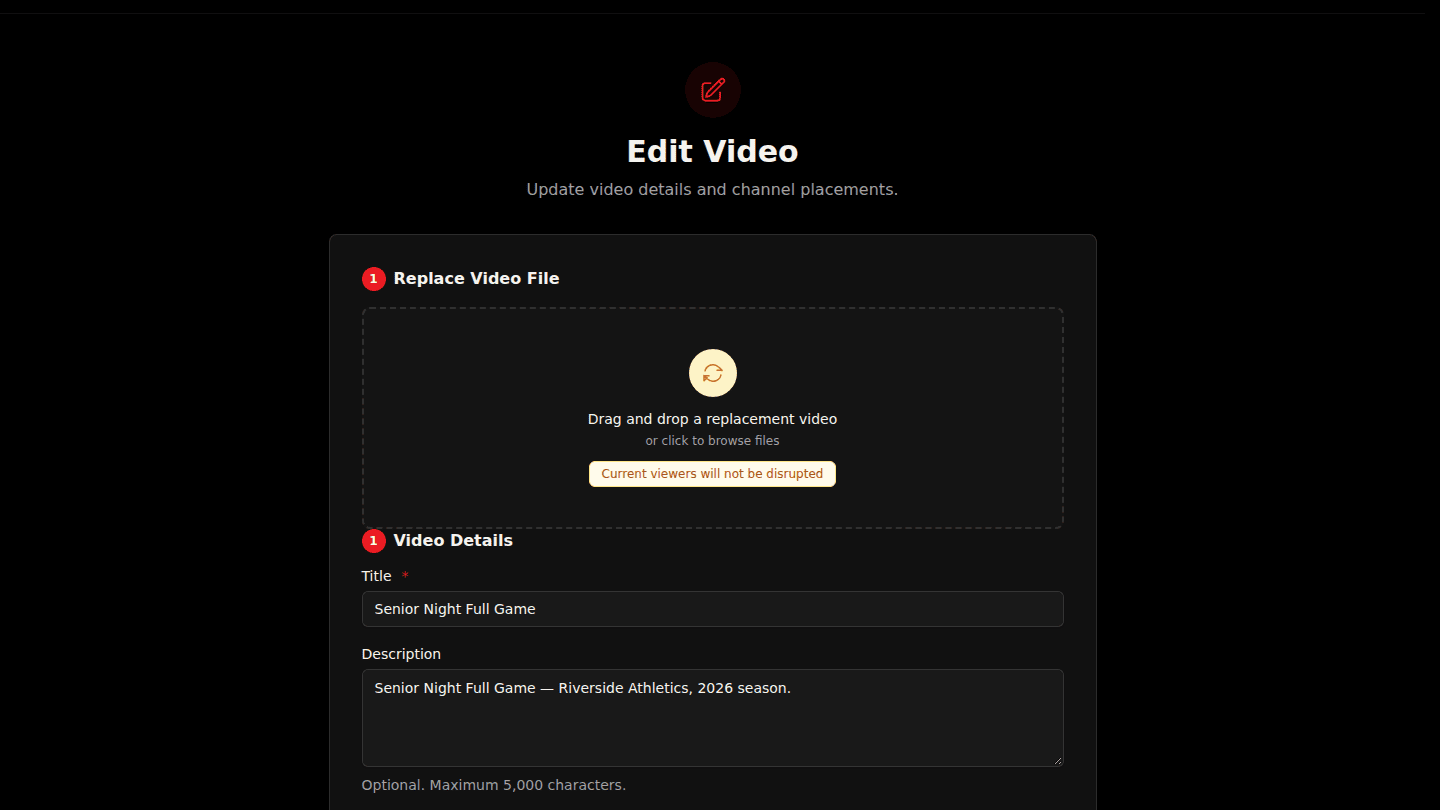
Drop the new file (or click to browse), wait for Uploading replacement… to finish, then choose Start Replacement. The video page shows Replacement in progress until processing finishes.
You should see
Replacement in progress on the video page, then the new file playing once processing finishes. Viewers are not interrupted.
How it works
Captions keep their text and timing. Cue points may drift if the new cut is different; open the editor and check them (Add cue point links).