
Videos
Add cue point links
Show a clickable card over the video at a chosen moment, linking to another video, channel, playlist or page.
Before you start
By the end a card appears over the video at the time you chose, and viewers who click it go where you sent them.
Before you start
- Processing has finished so the timeline has the full video length.
Steps
Step 1: In the editor, add a cue point at the playhead
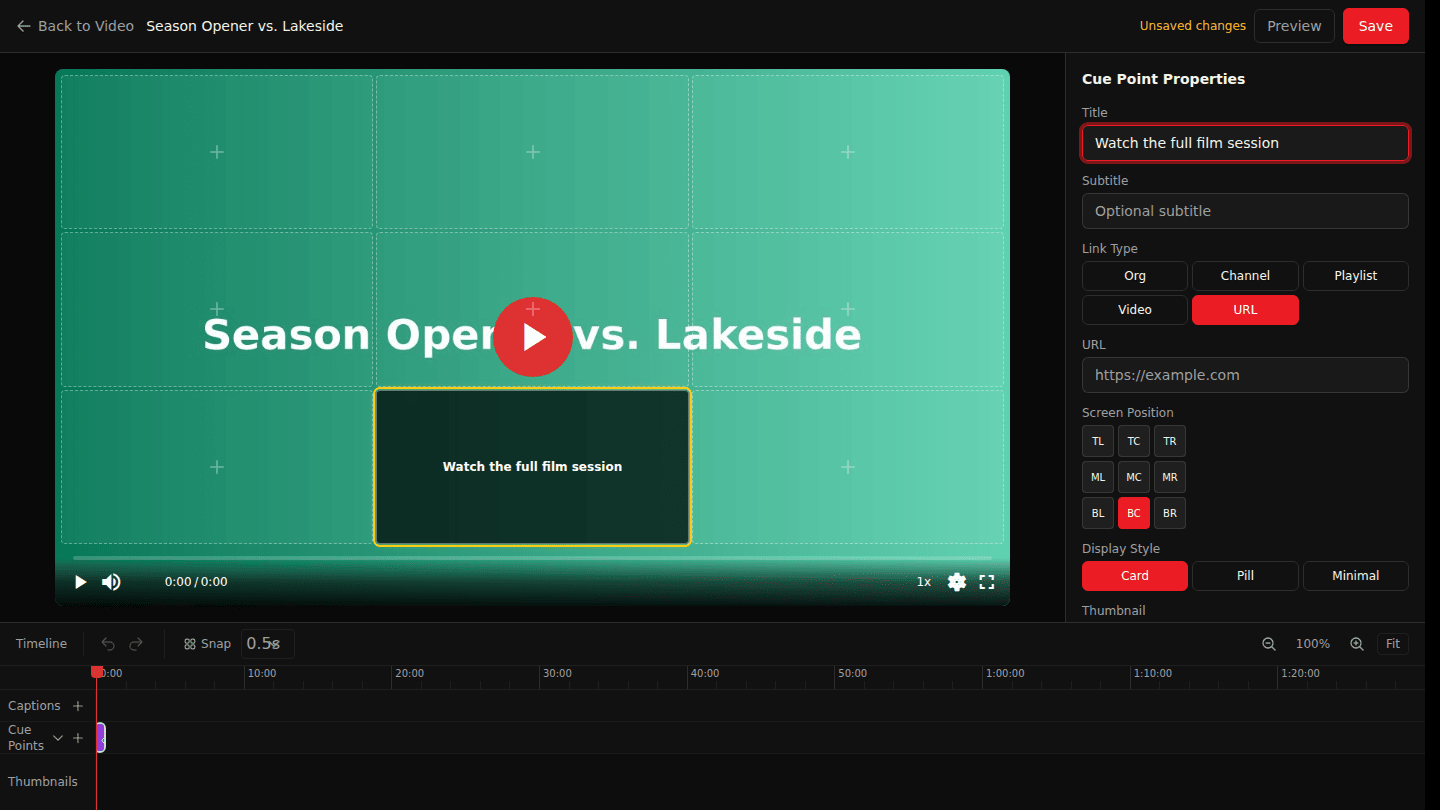
Open Manage → Editor and choose Add cue point at playhead on the cue point track. Enter a Title and an optional Subtitle: this is the card viewers see over the video.
Step 2: Pick what the cue point links to
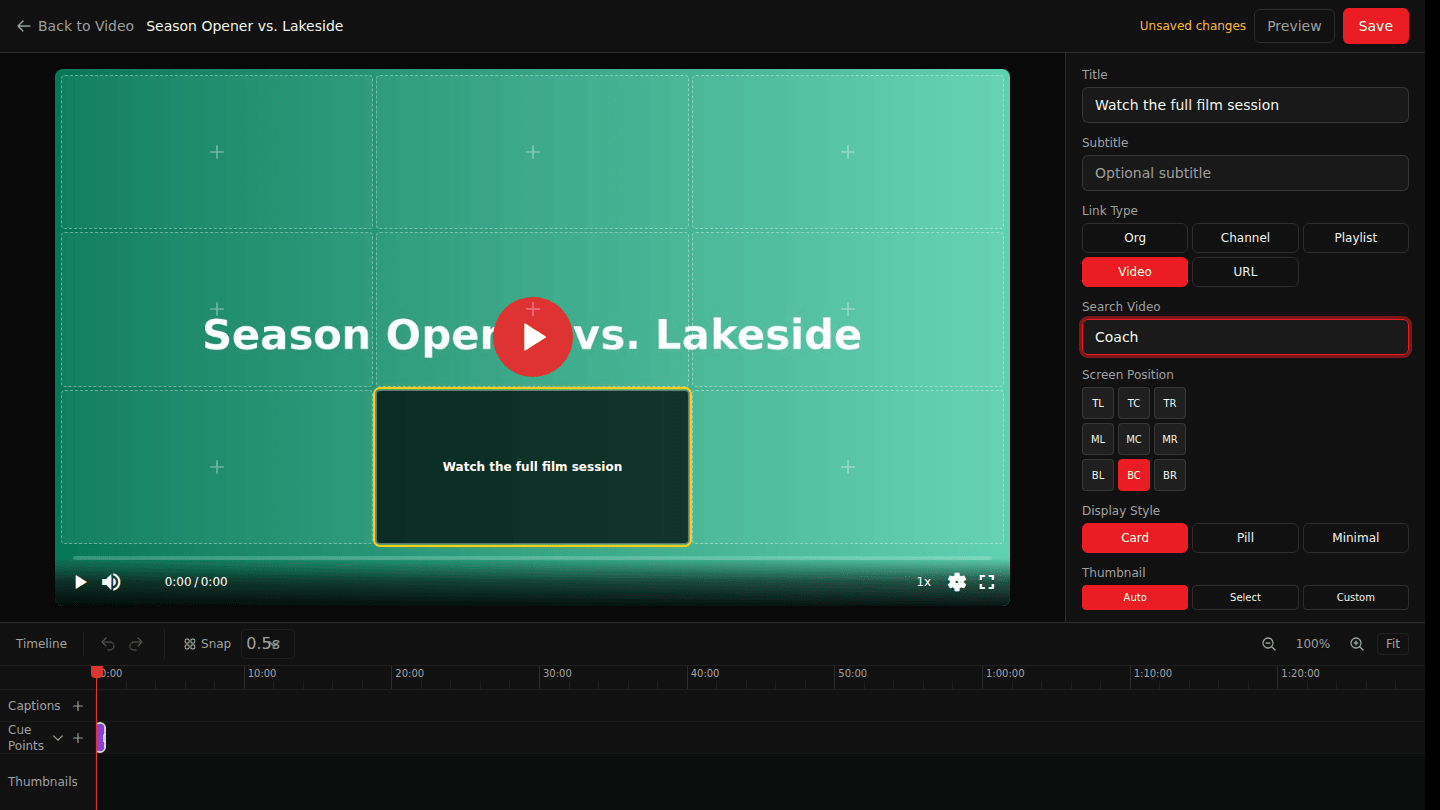
Under Link Type choose Video, Channel, Playlist, Org or URL, then search for the target. Set Screen Position, Display Style and when the card shows with Start and End.
Step 3: Choose Save
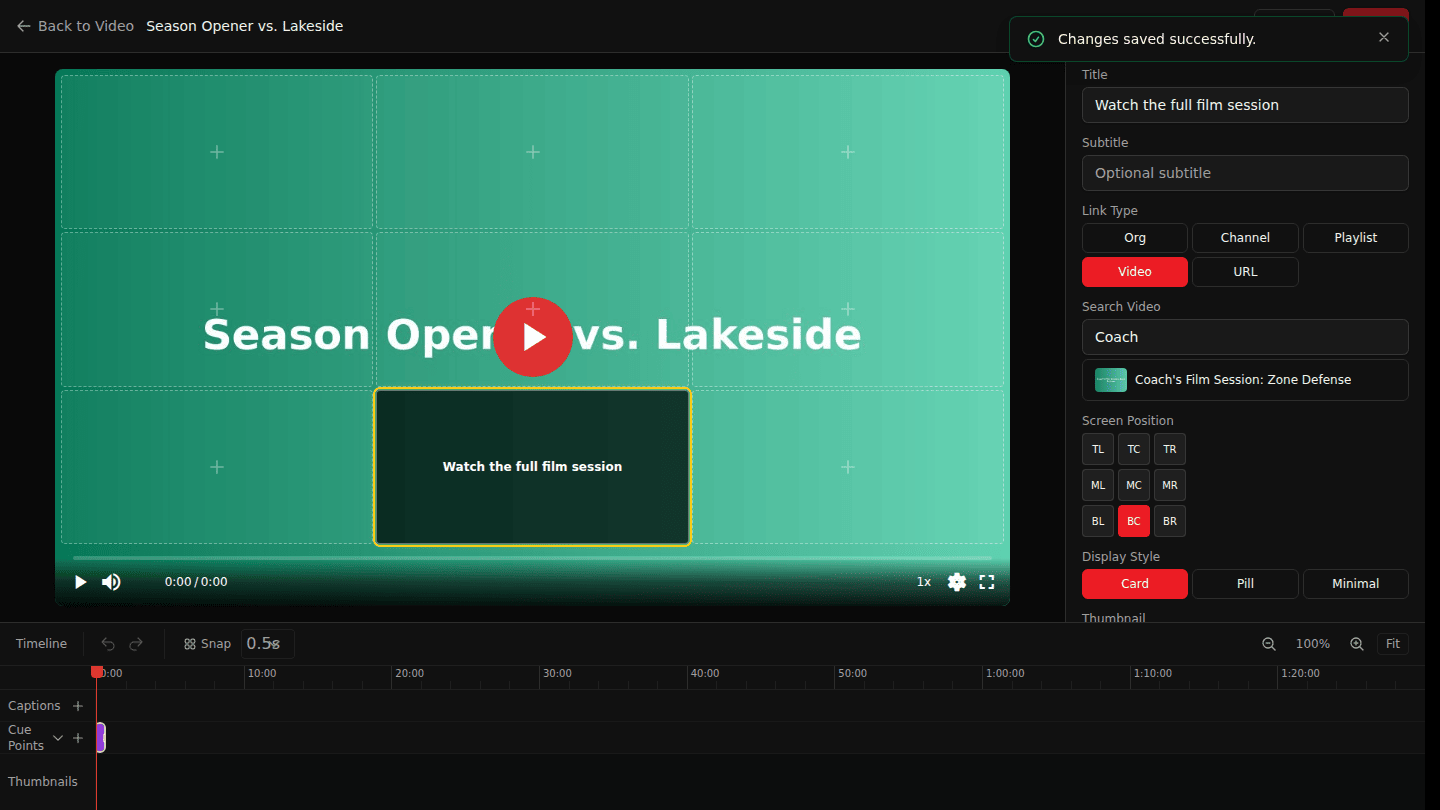
Choose Save. The card appears over the video between the start and end times you set.
You should see
Changes saved successfully, and the card over the video when playback reaches its start time.
How it works
Cue points keep their timing when you edit captions, but if you replace the video file check them again: the editor warns when they may be out of sync.