
Videos
Add and edit captions
Add captions in the editor and fix their timing and text.
Before you start
By the end the video has captions viewers can turn on in the player.
Before you start
- Processing has finished so the timeline has the full video length.
Steps
Step 1: Choose Manage → Editor on the video
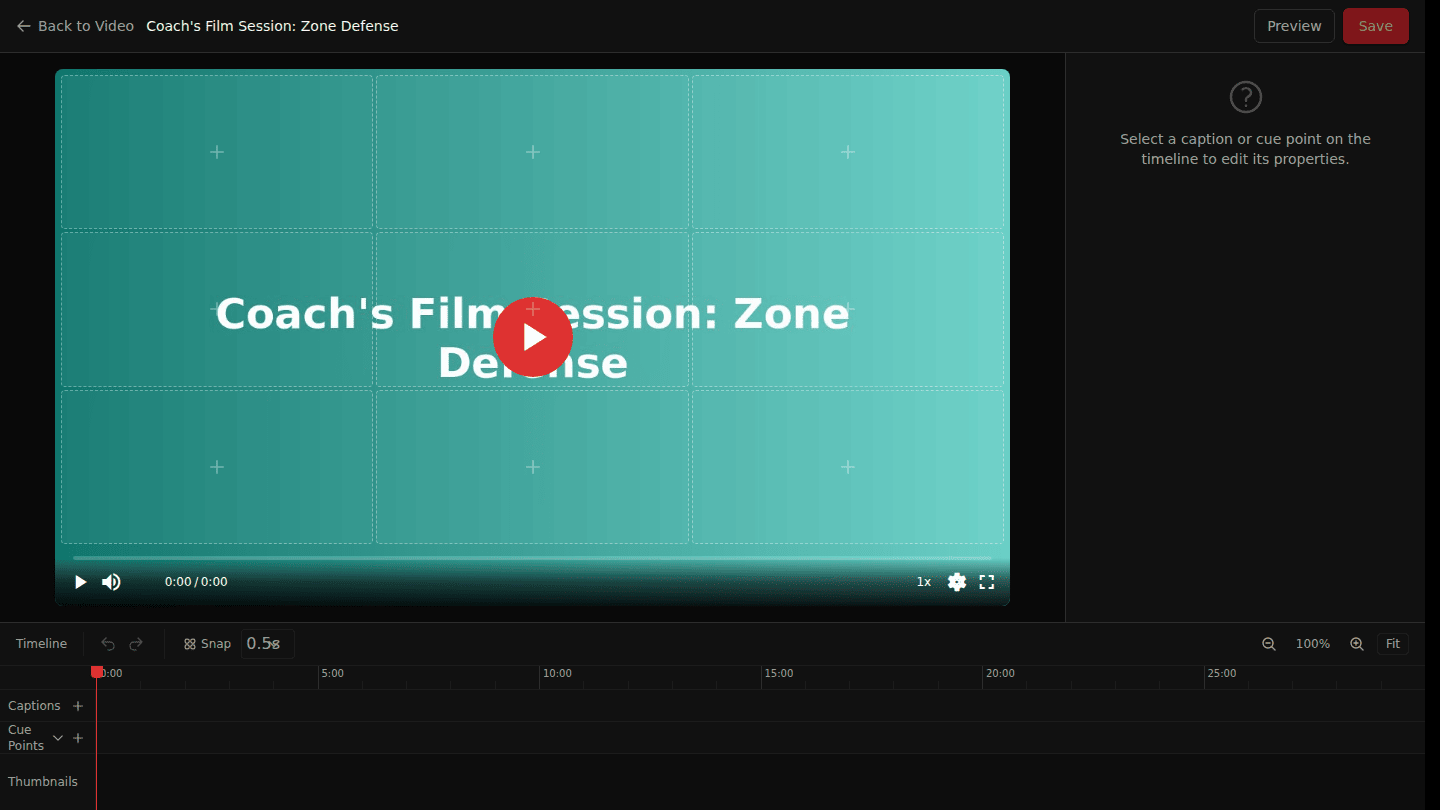
Open the video page and choose Manage → Editor. The timeline at the bottom has a Captions track.
Step 2: Add a caption at the playhead and type the text
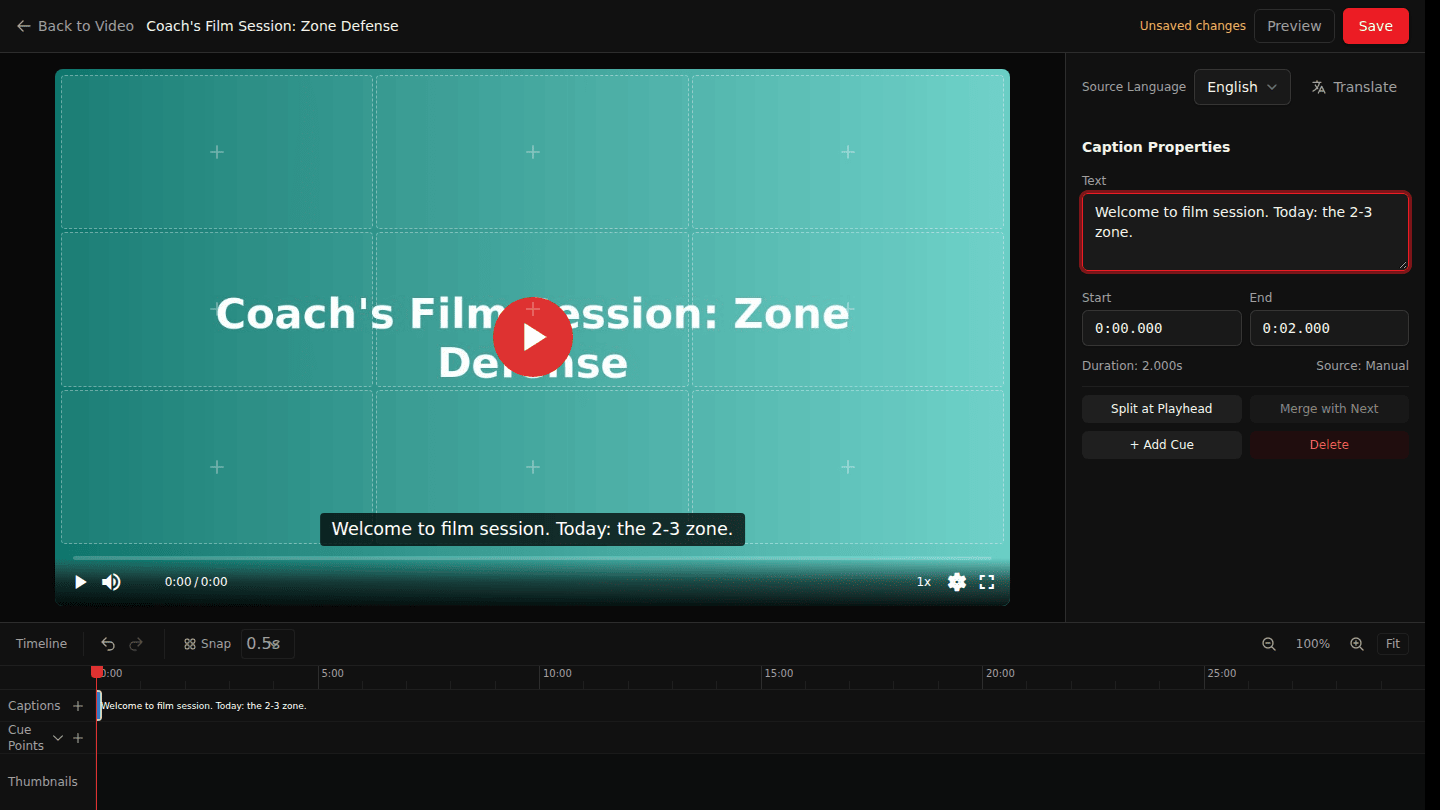
Move the playhead to where the caption starts and choose Add caption at playhead (the plus on the Captions track). Type the Text; adjust Start and End, or use Split at Playhead and Merge with Next.
Step 3: Choose Save
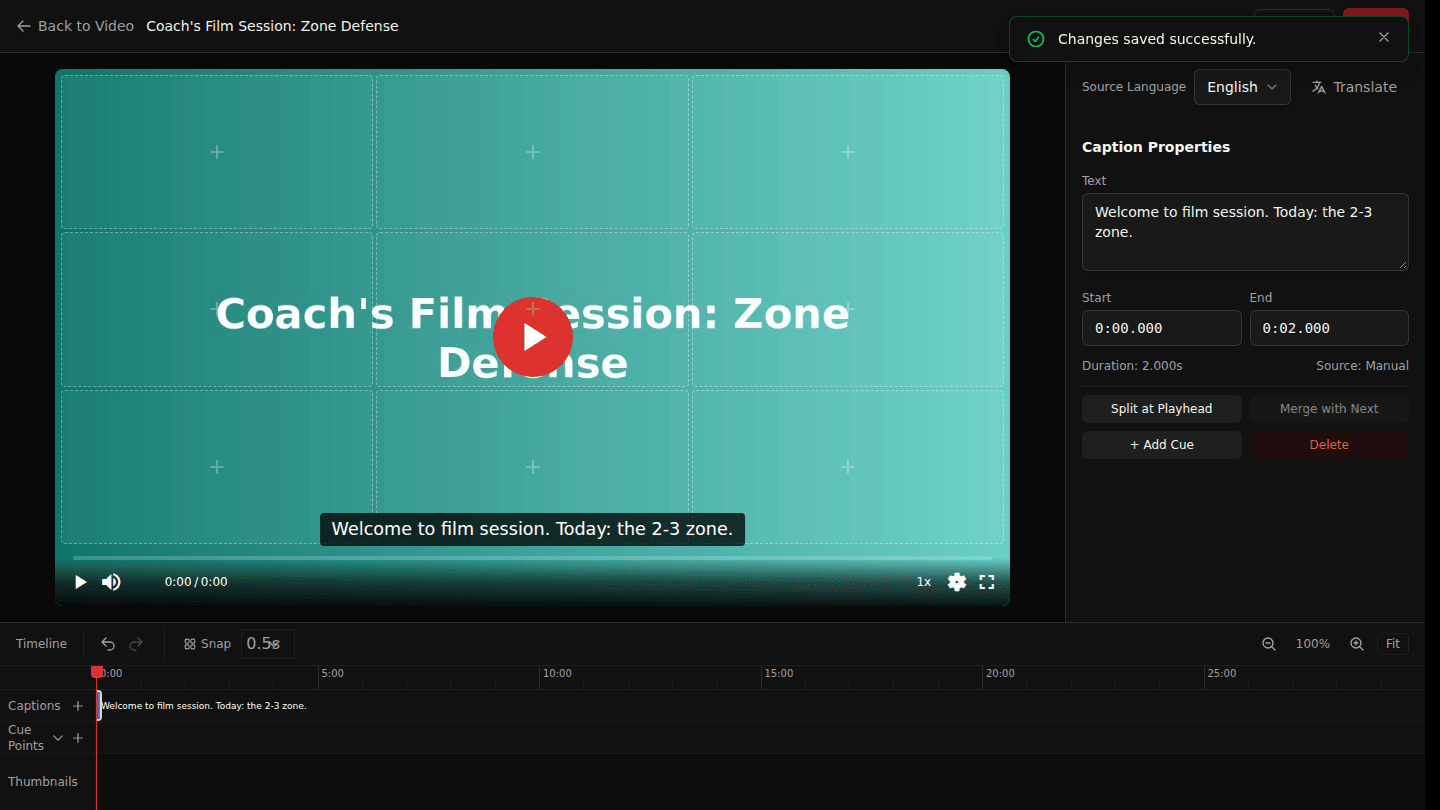
Choose Save in the editor header. Captions show up in the player's CC menu.
You should see
Changes saved successfully, and CC in the player with your captions.
How it works
If the video was processed with automatic captions, Import Captions from VTT brings them in as a starting point. Each caption is a cue with a start and end time; the timeline lets you drag them.