
Videos
Translate captions
Create caption tracks in other languages from the ones you have.
For creators
Roles: Owner, Channel manager, Video editor
Before you start
By the end viewers can pick another language for captions in the player.
Before you start
- The video has captions in its source language (Add and edit captions).
Steps
Step 1: Open the editor and select a caption
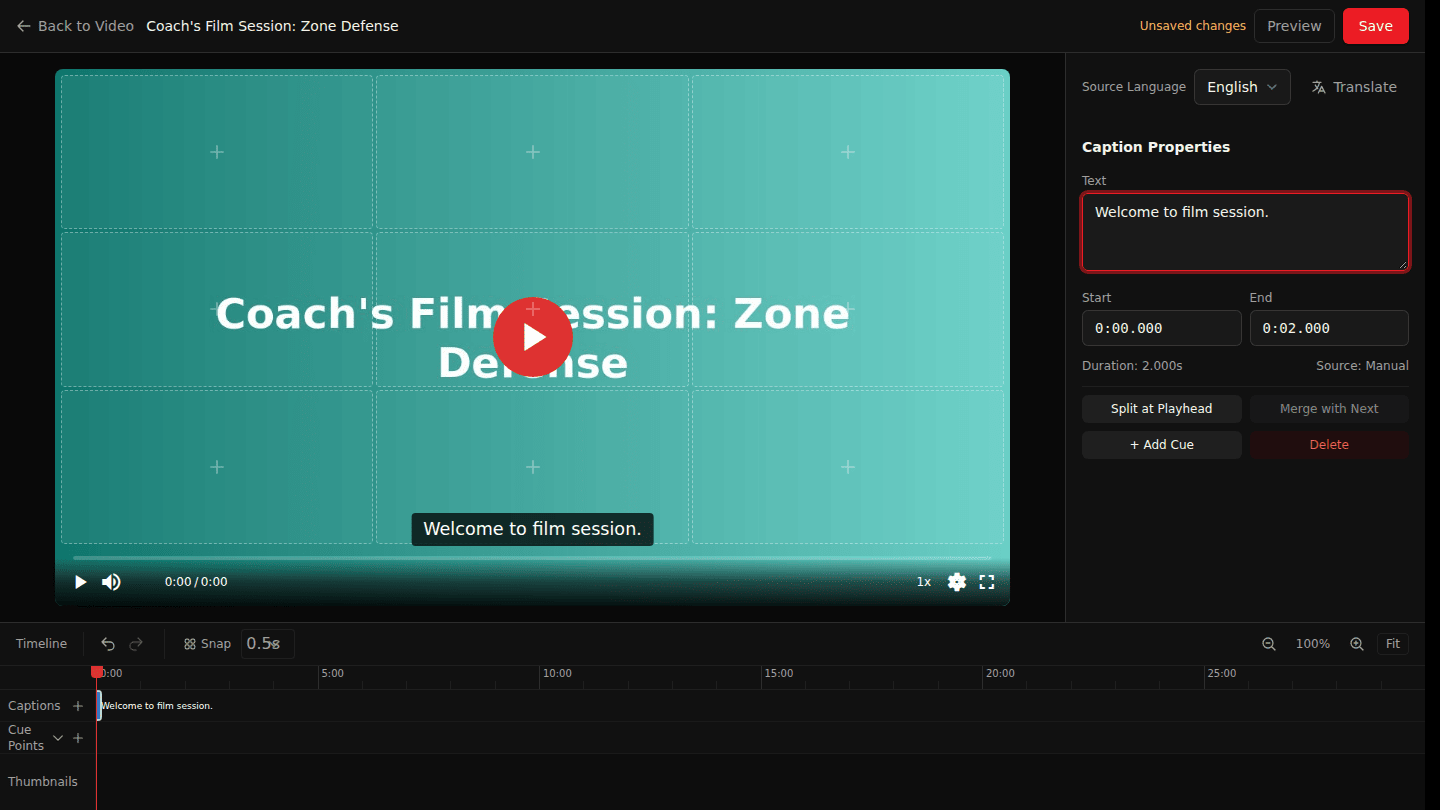
Open the video page, choose Manage → Editor and select a caption on the Captions track. The panel shows the Source Language.
Step 2: Choose Translate and pick a language
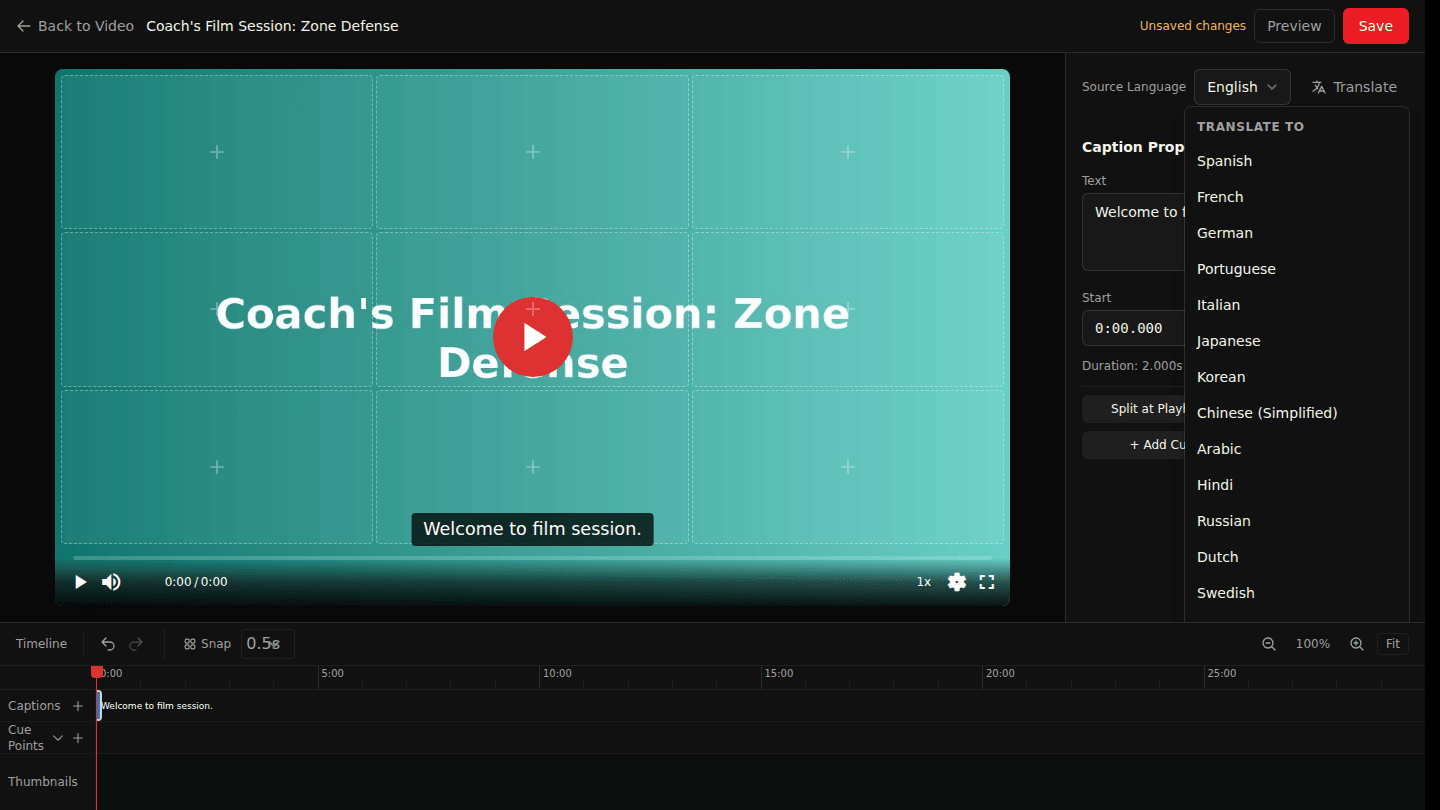
Choose Translate and pick a language from Translate to. Translation runs in the background; the new language appears as its own caption track when it is ready, and viewers can pick it in the player.
You should see
A new language tab in the editor once translation finishes, and that language in the player's CC menu.
How it works
Translation keeps the timing of the source captions and translates the text. Review the result in the editor; you can edit any translated cue like a normal caption.