
Your organization
Create an organization
Set up the organization that owns your channels, videos and earnings.
For creators
Before you start
By the end you own an organization and can create its first channel.
Before you start
- You are signed in with a confirmed email address.
- One organization per account to begin with; contact support to raise the limit.
Steps
Step 1: Choose Create Organization and enter the basics
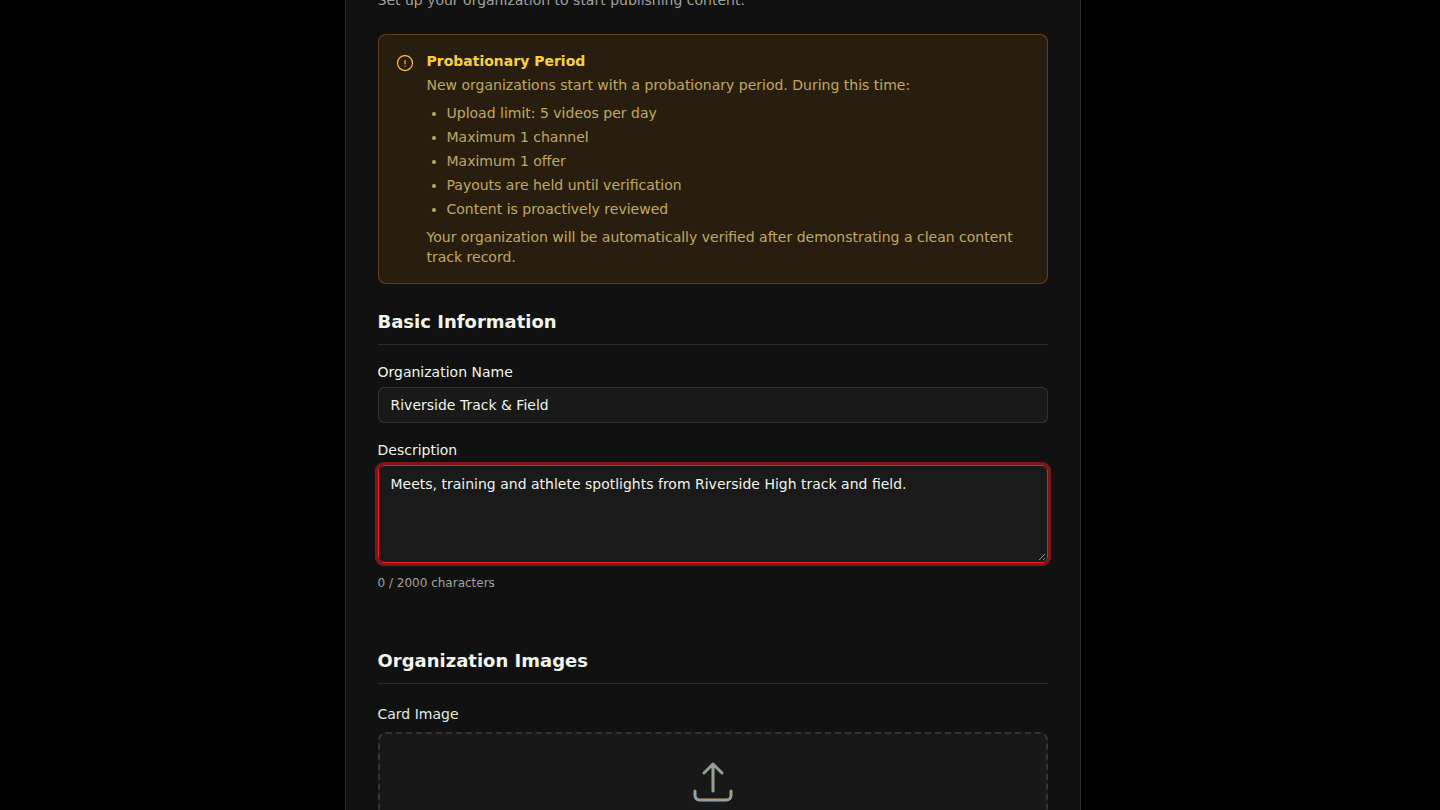
Open the menu and choose Create Organization. Enter the Organization Name and a Description. Images can wait.
Step 2: Agree to the terms and choose Create Organization
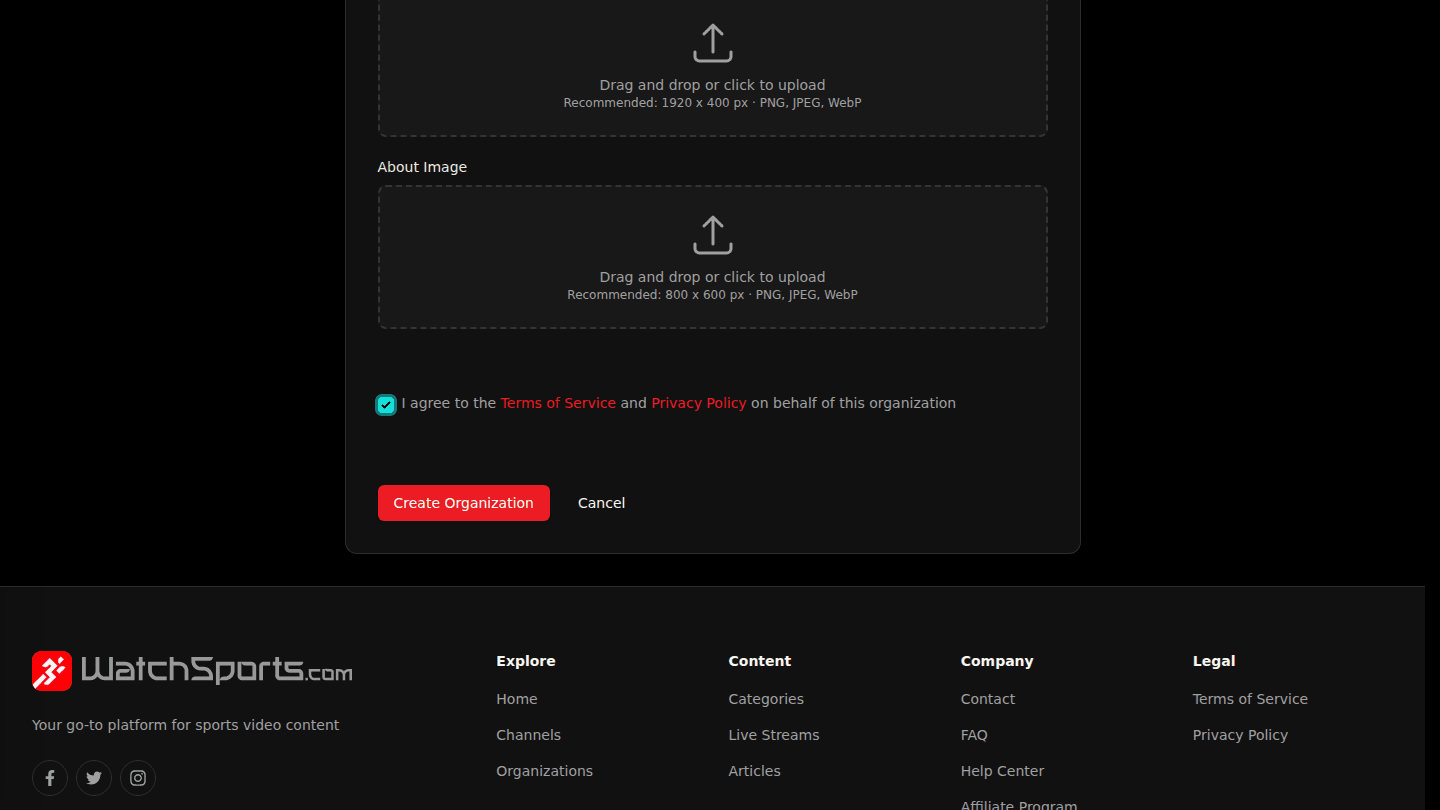
Tick I agree to the Terms of Service and Privacy Policy on behalf of this organization and choose Create Organization.
Step 3: Read the probation limits on your new organization
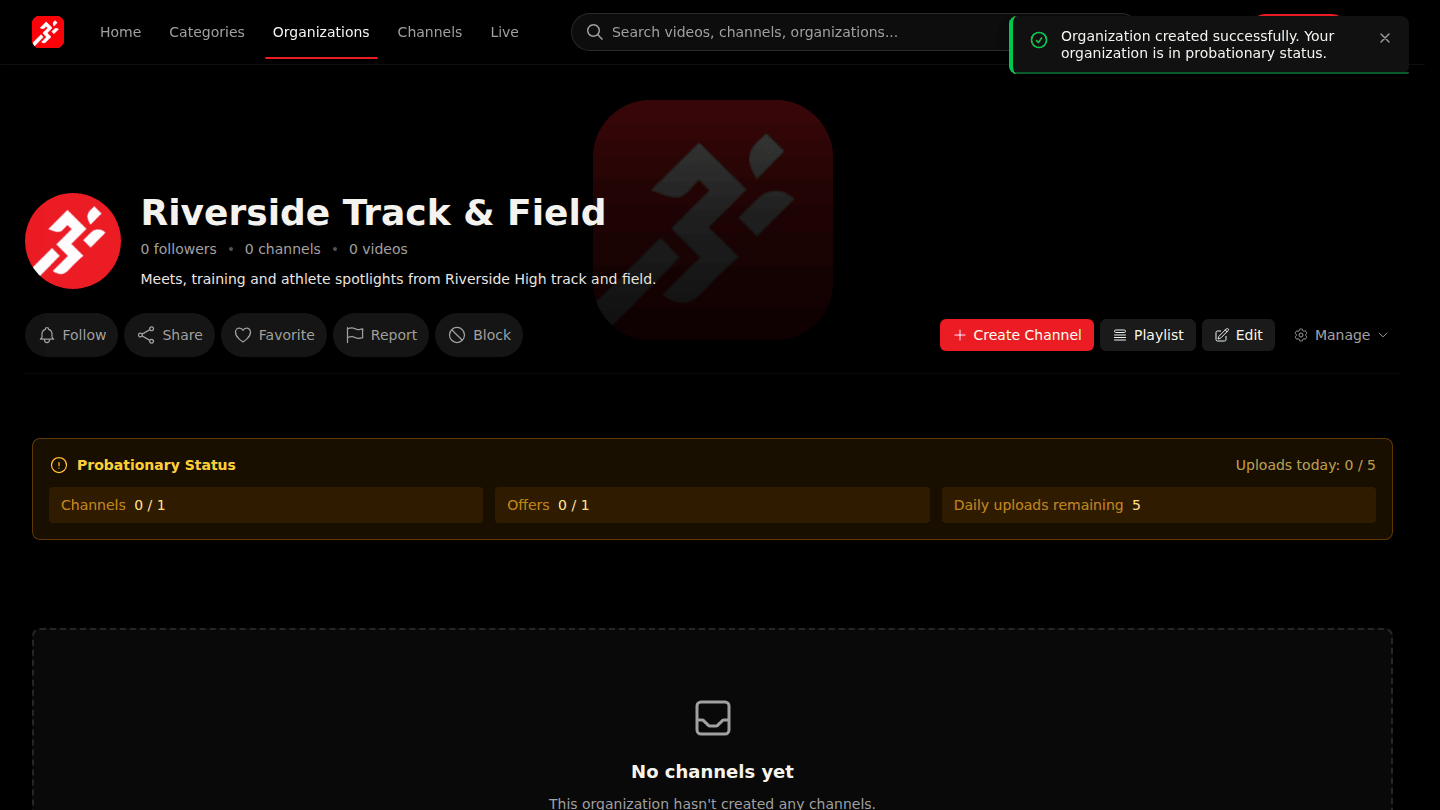
Your organization starts in a probationary period: limited channels, offers and daily uploads, and payouts on hold, until it is verified. The banner on your organization page shows today's limits.
You should see
Your organization page with the Probationary Status banner.