
Live streaming
Go live with OBS
Start a scheduled stream from OBS or similar software.
For creators
Roles: Owner, Channel manager, Video editor
Before you start
By the end viewers are watching your stream and chatting.
Before you start
- OBS (or Streamlabs, vMix, a hardware encoder) with the Server URL and Stream Key entered.
- The stream is scheduled (Schedule a live stream).
Steps
Step 1: Open your scheduled stream and expand Broadcaster Setup
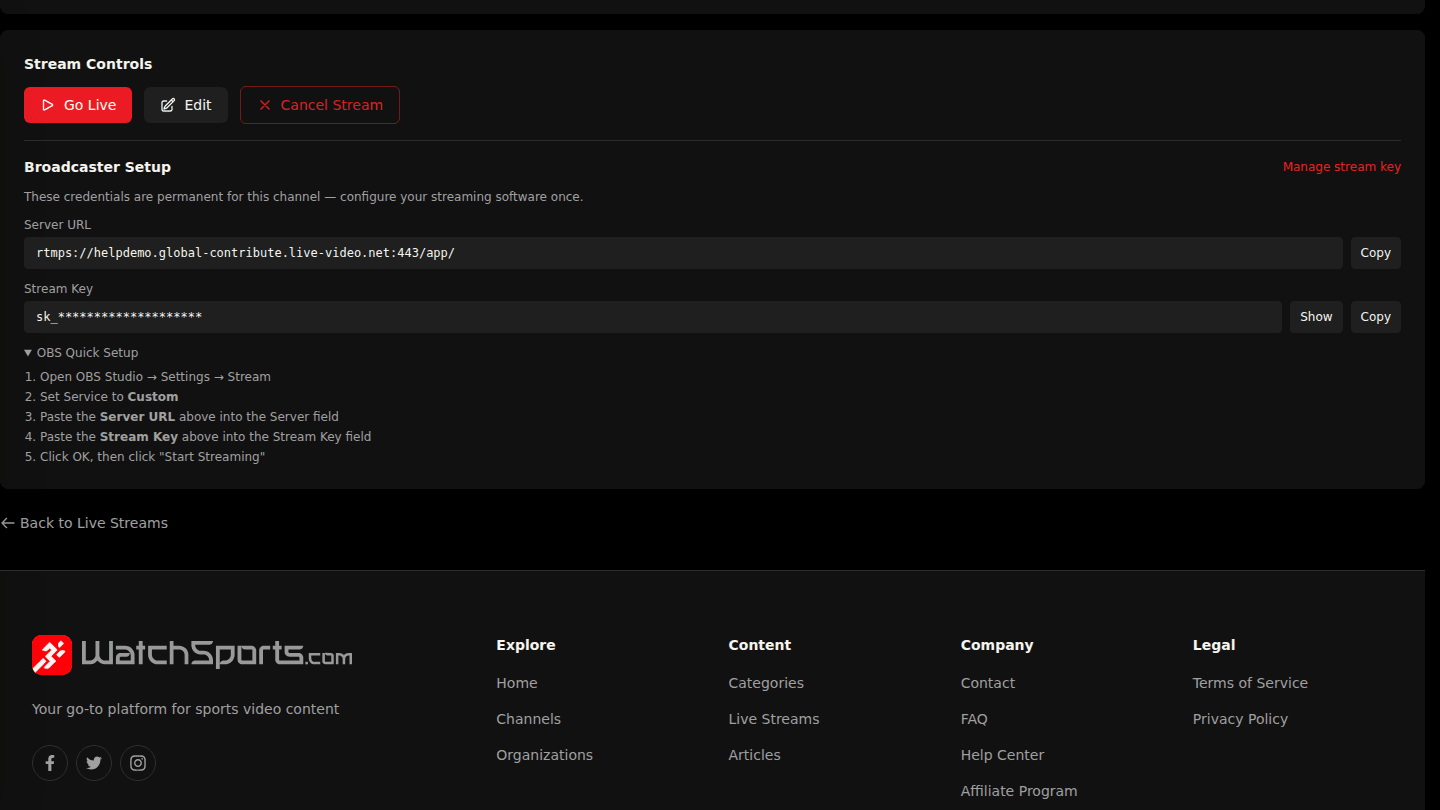
Open the stream page from My Streams. Broadcaster Setup shows the Server URL, the Stream Key and an OBS Quick Setup guide: paste both into OBS under Settings → Stream (service Custom).
Step 2: Start streaming in OBS, then choose Go Live
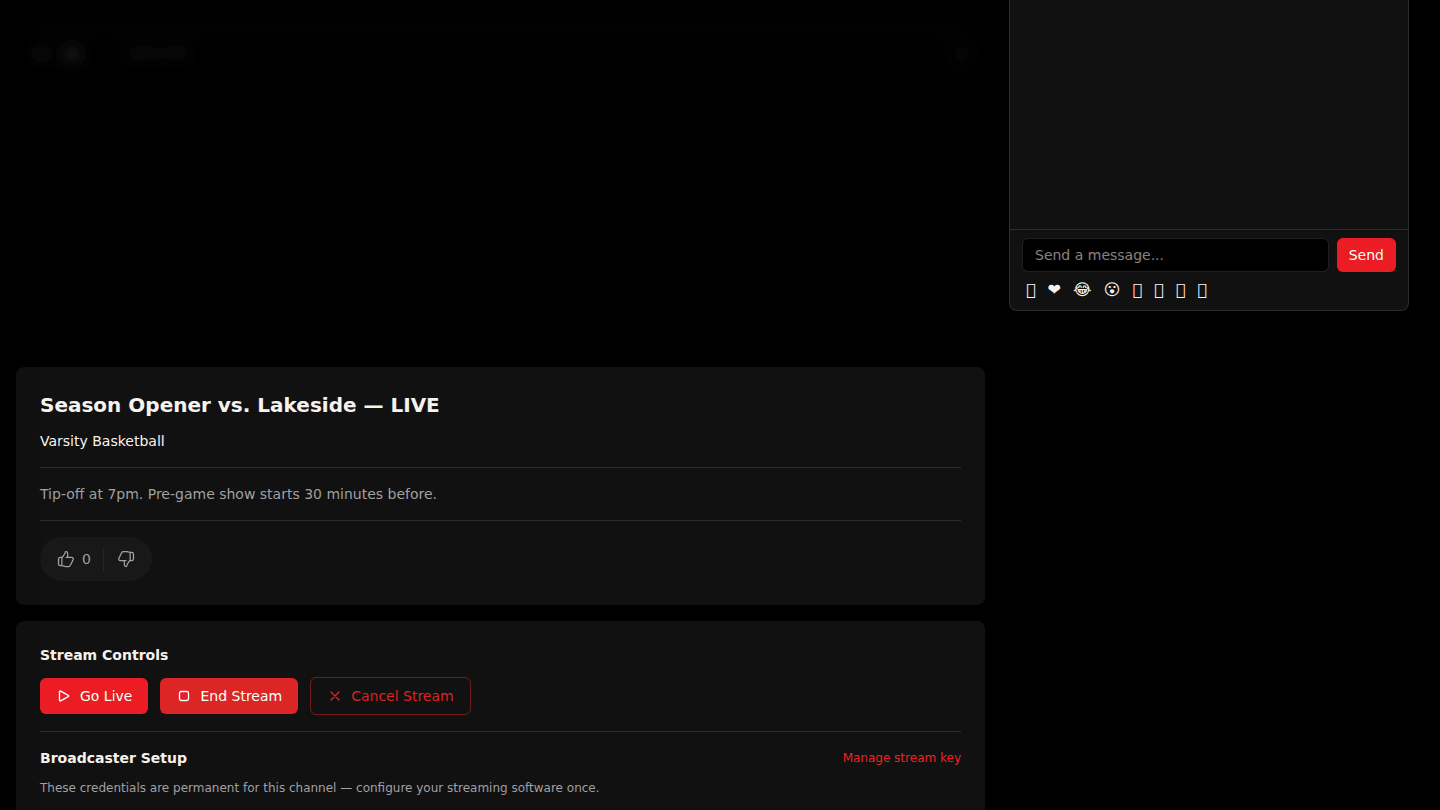
Press Start Streaming in OBS, then choose Go Live here and confirm. Viewers see the stream within a few seconds and chat opens.
You should see
Stream is starting! and, within a few seconds, your video playing on the stream page.
How it works
Streaming software sends video to the server as soon as you press Start Streaming; Go Live tells viewers it is time. Do it in that order so nobody sees a blank player.