
Your organization
Retire or delete content
Take a video, channel or organization out of circulation, with or without a grace period for buyers.
By the end the content is hidden from viewers, and you know how to bring it back or remove it for good.
Before you start
- You are the owner. Retiring a channel or organization also retires everything inside it and archives its active offers.
Steps
Step 1: Open the video and choose Manage → Retire
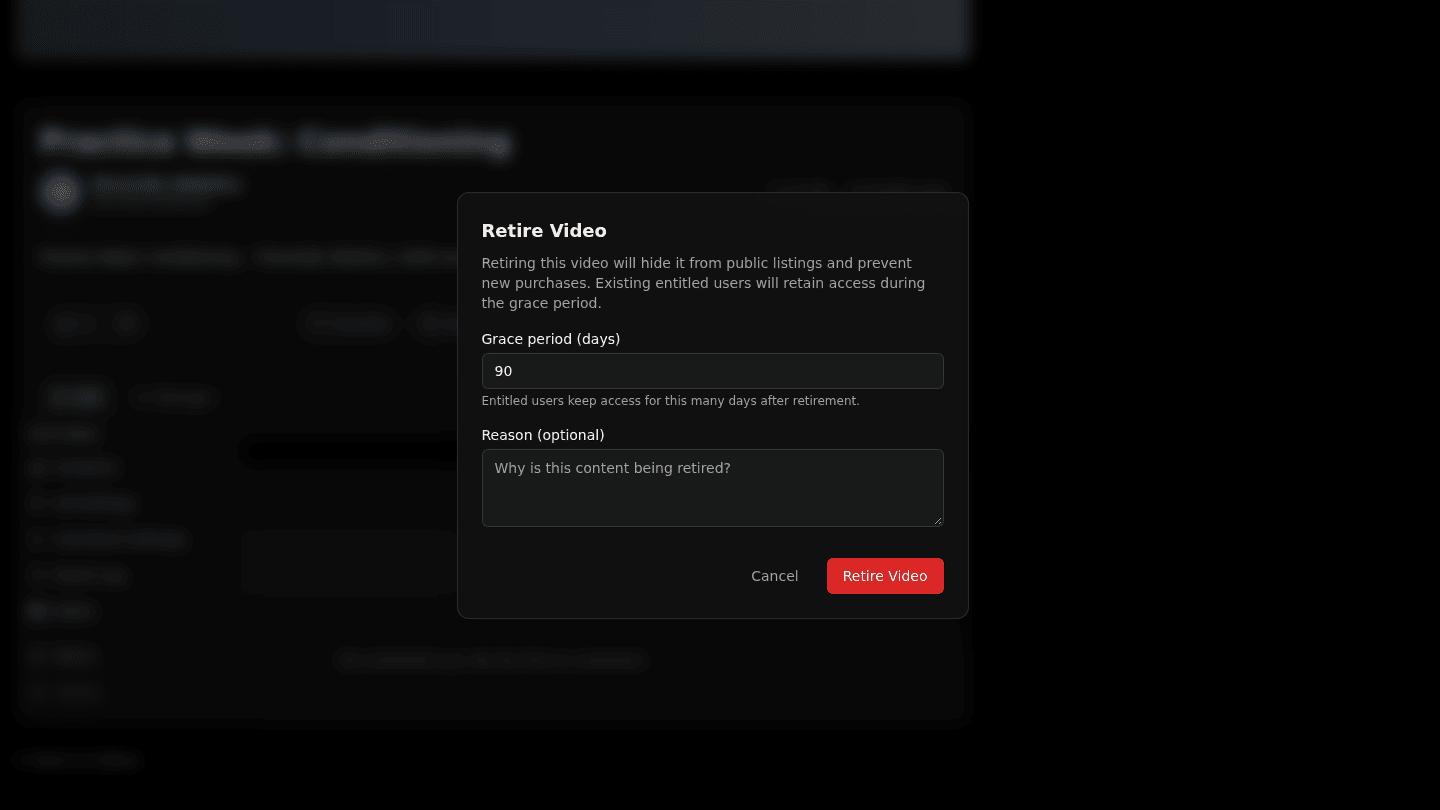
Open the video, channel or organization page and choose Manage → Retire. Retiring hides it from listings and stops new purchases; people who already paid keep access during the grace period.
Step 2: Set the grace period and confirm
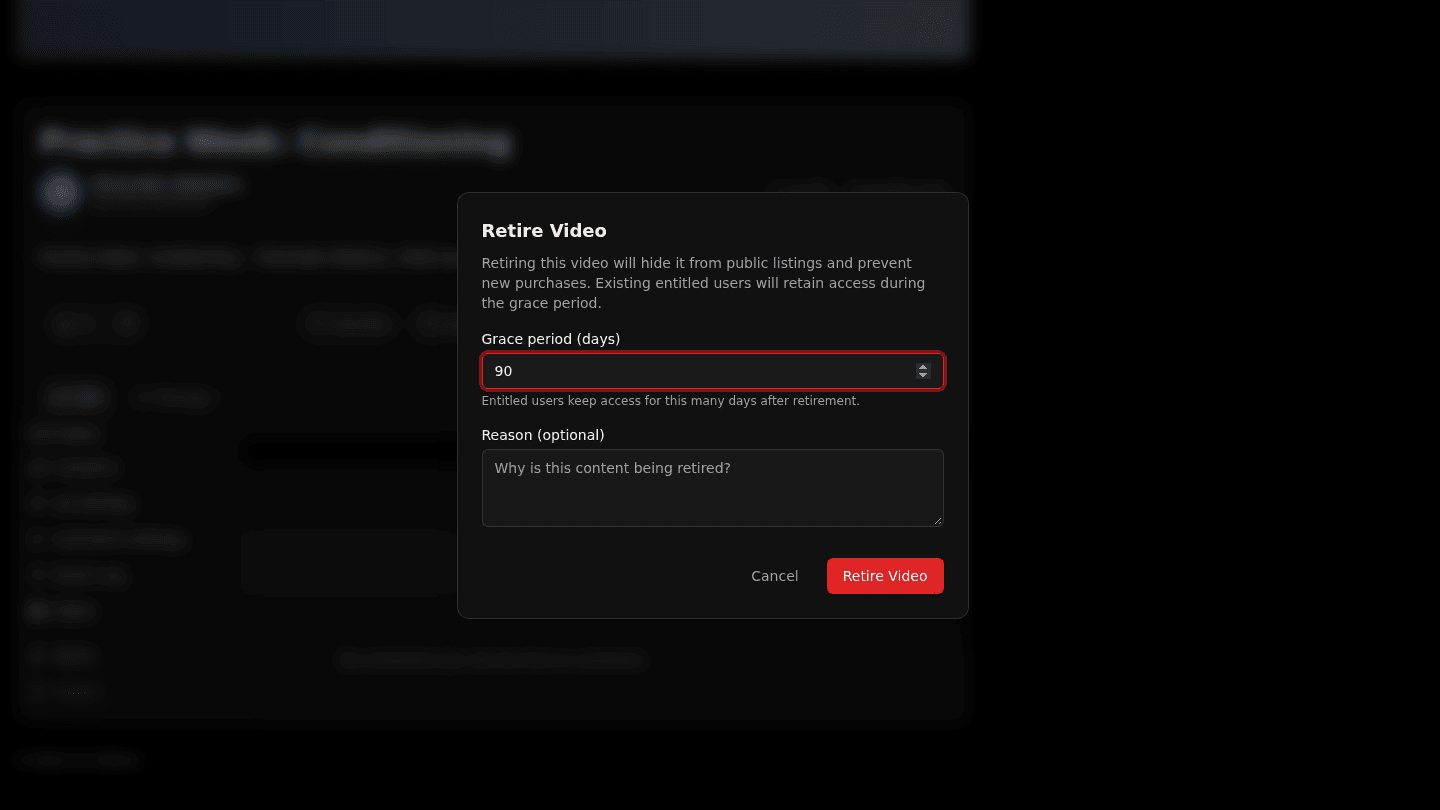
Set the Grace period (days) existing buyers keep access, add a Reason if you like, then choose Retire Video.
Step 3: Unretire if you change your mind

A retired item shows a RETIRED banner with Unretire, which makes it public again. Delete under Manage removes a video and its files permanently and cannot be undone.
You should see
A RETIRED banner with the days remaining on the grace period, and the item gone from public listings.
How it works
Retire when people have paid: they keep access for the grace period and subscriptions are wound down cleanly. Delete only for videos nobody needs again; it removes the files and cannot be undone.