
Comments, chat, ads and analytics
Moderate comments
Pin, highlight or hide comments on your content.
For creators
Roles: Owner, Channel manager, Community manager
By the end the comment thread shows what you want at the top and nothing you do not.
Before you start
- You are an owner, channel manager or community manager for the content.
Steps
Step 1: Open the video and scroll to Comments
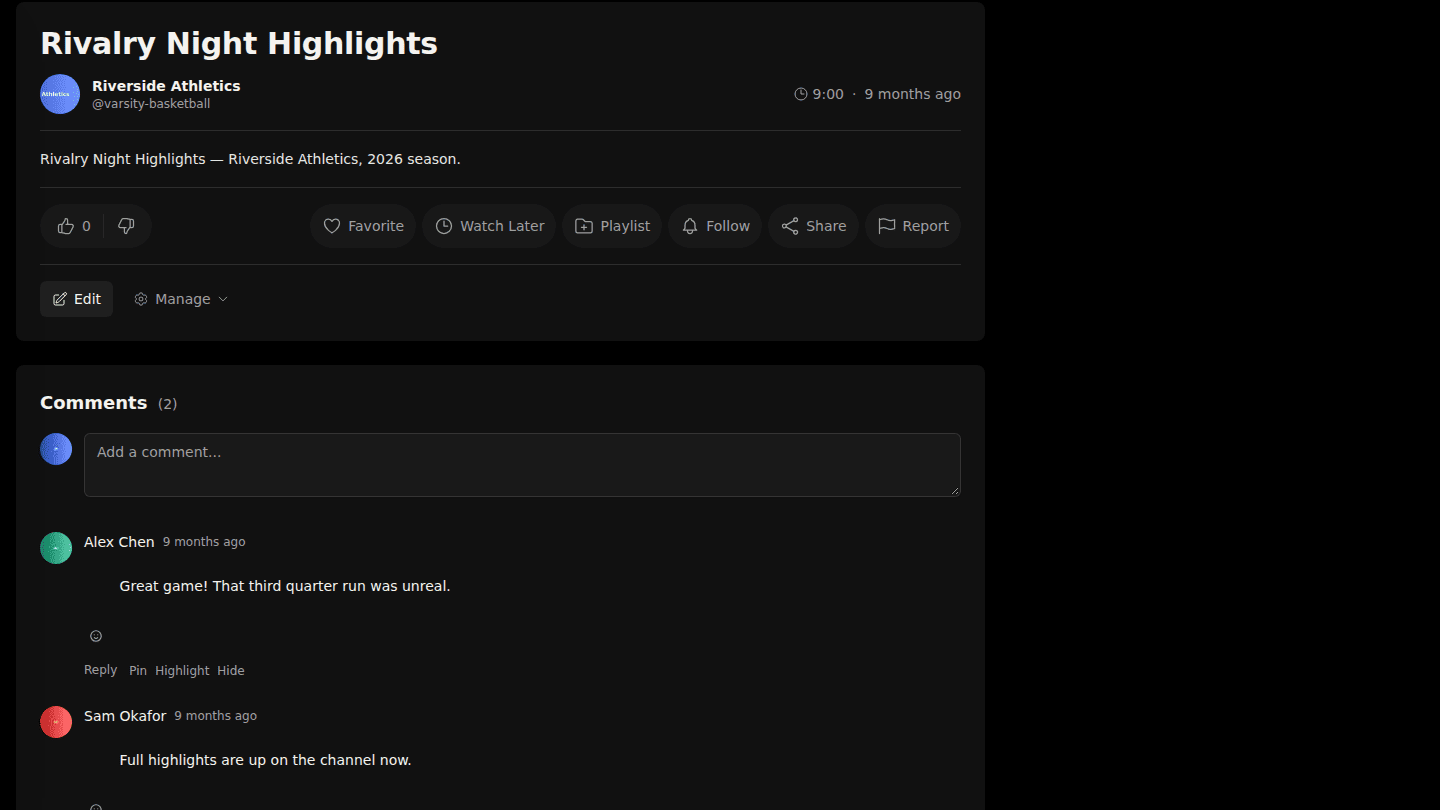
Open the video and scroll to Comments. As an owner, channel manager or community manager you see Pin, Highlight and Hide on each comment.
Step 2: Pin or highlight a comment
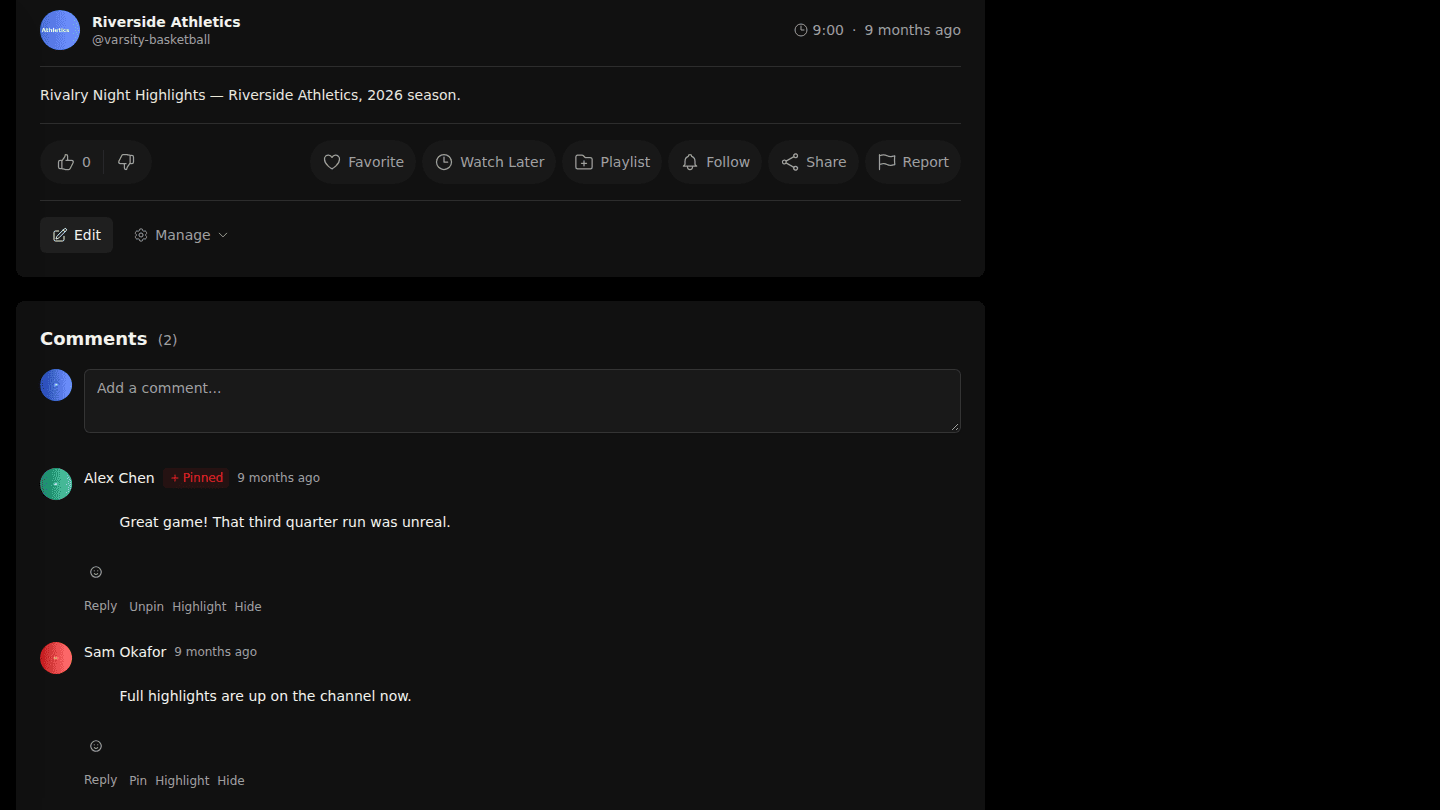
Pin keeps a comment at the top of the list; Highlight marks it so viewers see it stands out. Both are reversible with Unpin and Unhighlight.
Step 3: Hide a comment that breaks your rules
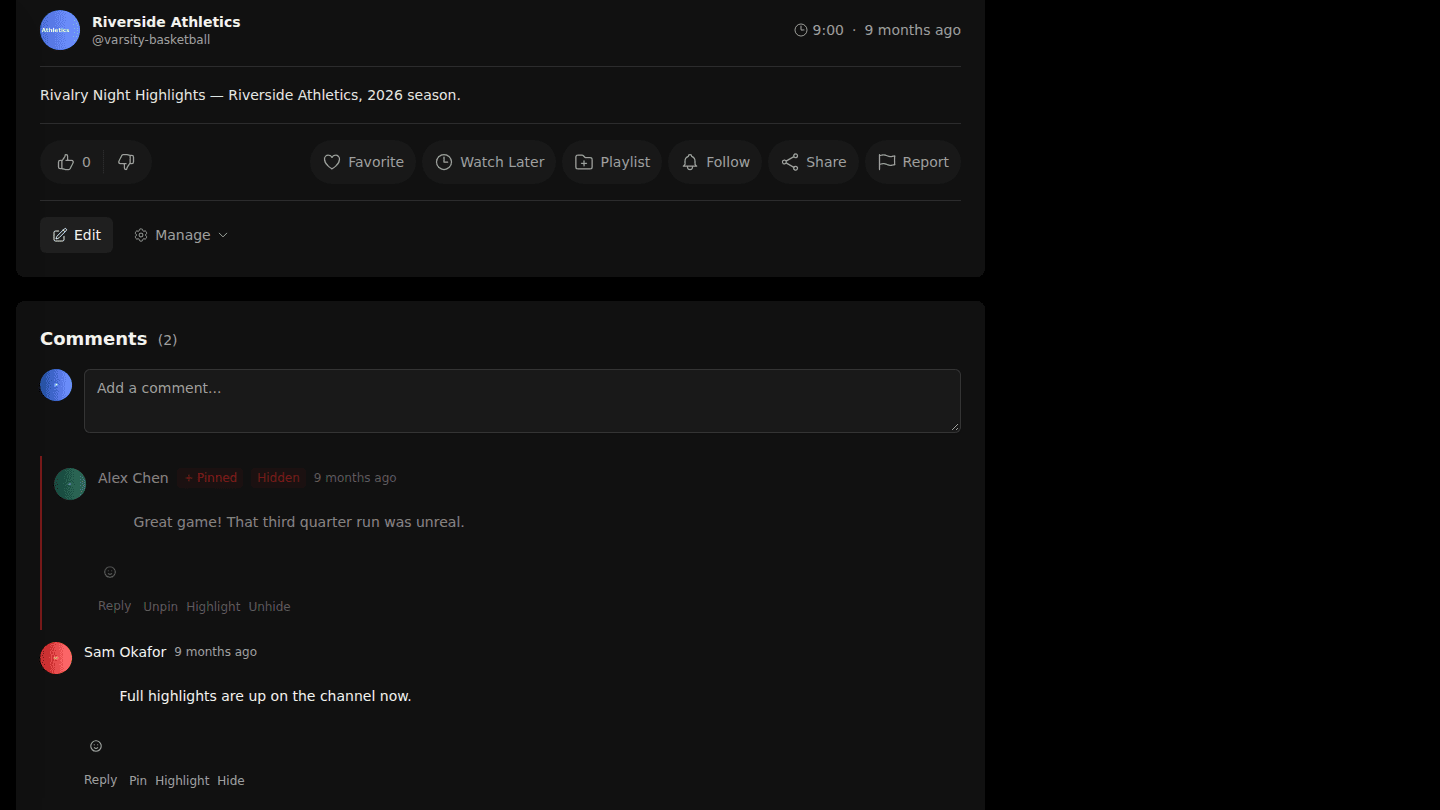
Hide removes a comment from viewers; it stays visible to your team with a Hidden badge and Unhide brings it back. To report abuse to the platform, use Report on the video.
You should see
The pinned comment first with a Pinned badge, and hidden comments marked Hidden for your team only.