
Your organization
Invite team members
Give people roles on your organization so they can upload, sell, moderate or read reports.
For creators
Roles: Owner
Before you start
By the end the person has the roles you chose across your whole organization.
Before you start
- They already have an account with the email address you will enter; invitations by email are not sent.
- You are the owner.
Steps
Step 1: Open your organization and choose Manage → Team
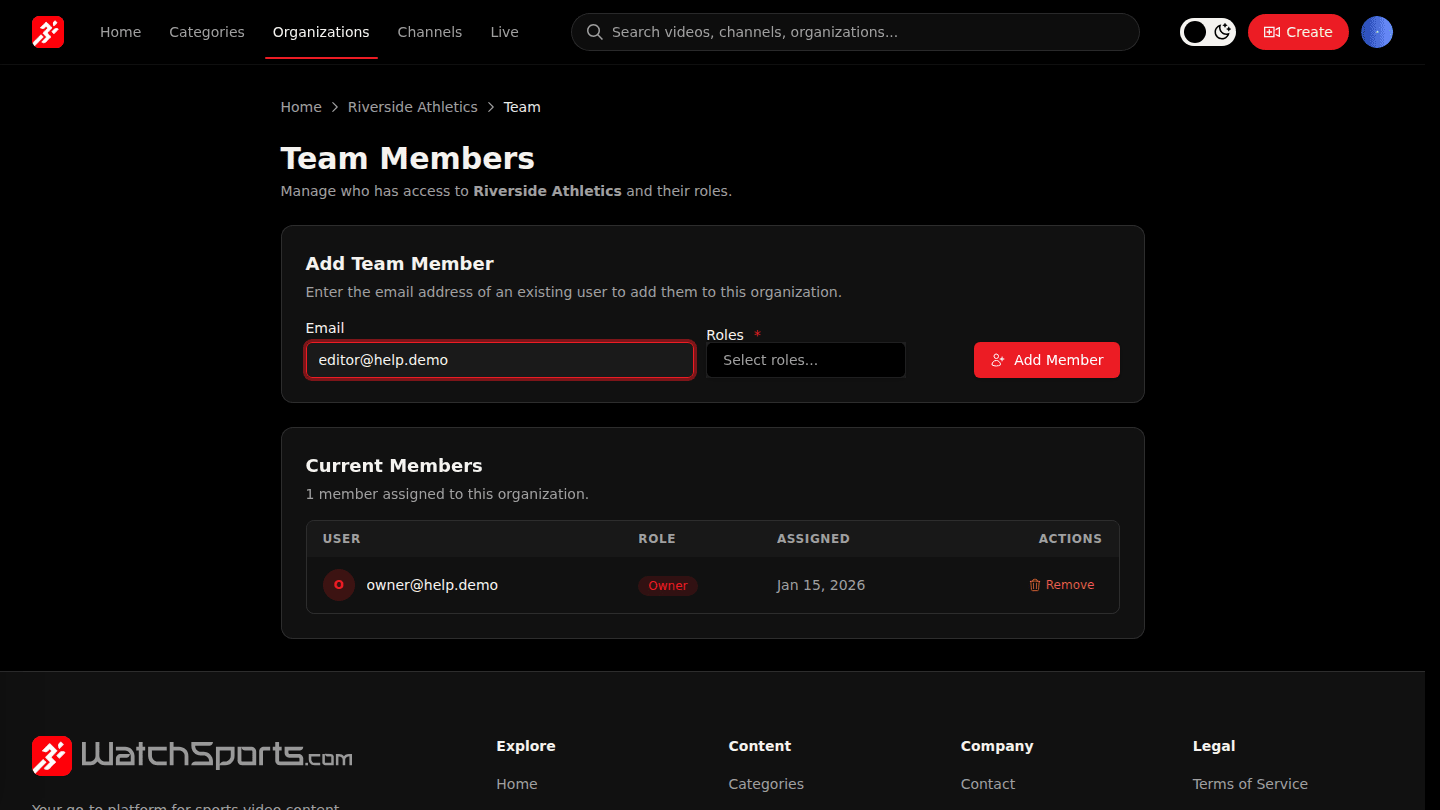
Open your organization page and choose Manage → Team. Under Add Team Member enter the Email of someone who already has an account.
Step 2: Pick their roles
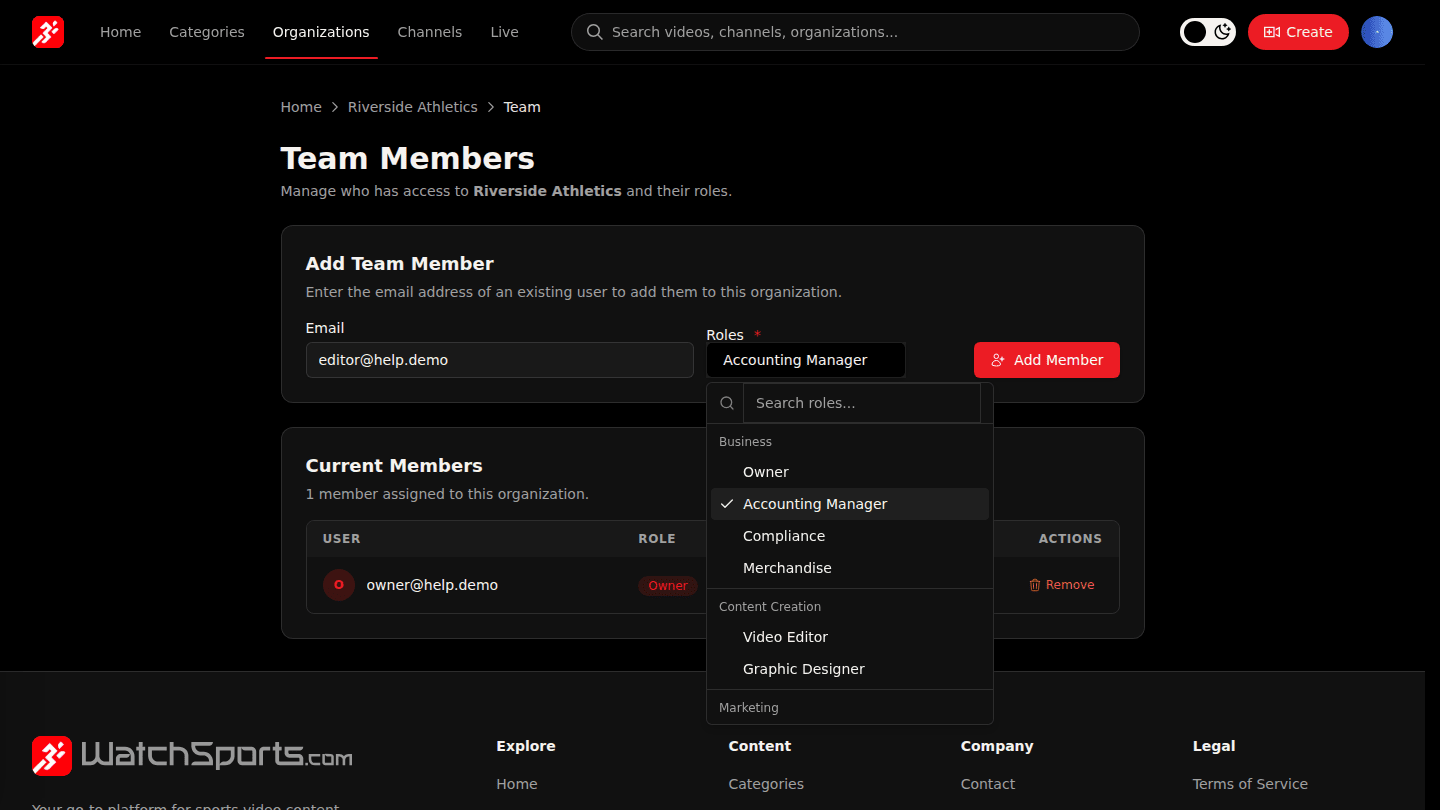
Open Roles and tick one or more. Owner can do everything, Accounting Manager handles offers and finances, Channel Manager runs channels, Video Editor uploads and edits, Community Manager moderates, Analytics Specialist reads reports. Roles here apply to every channel.
Step 3: Choose Add Member
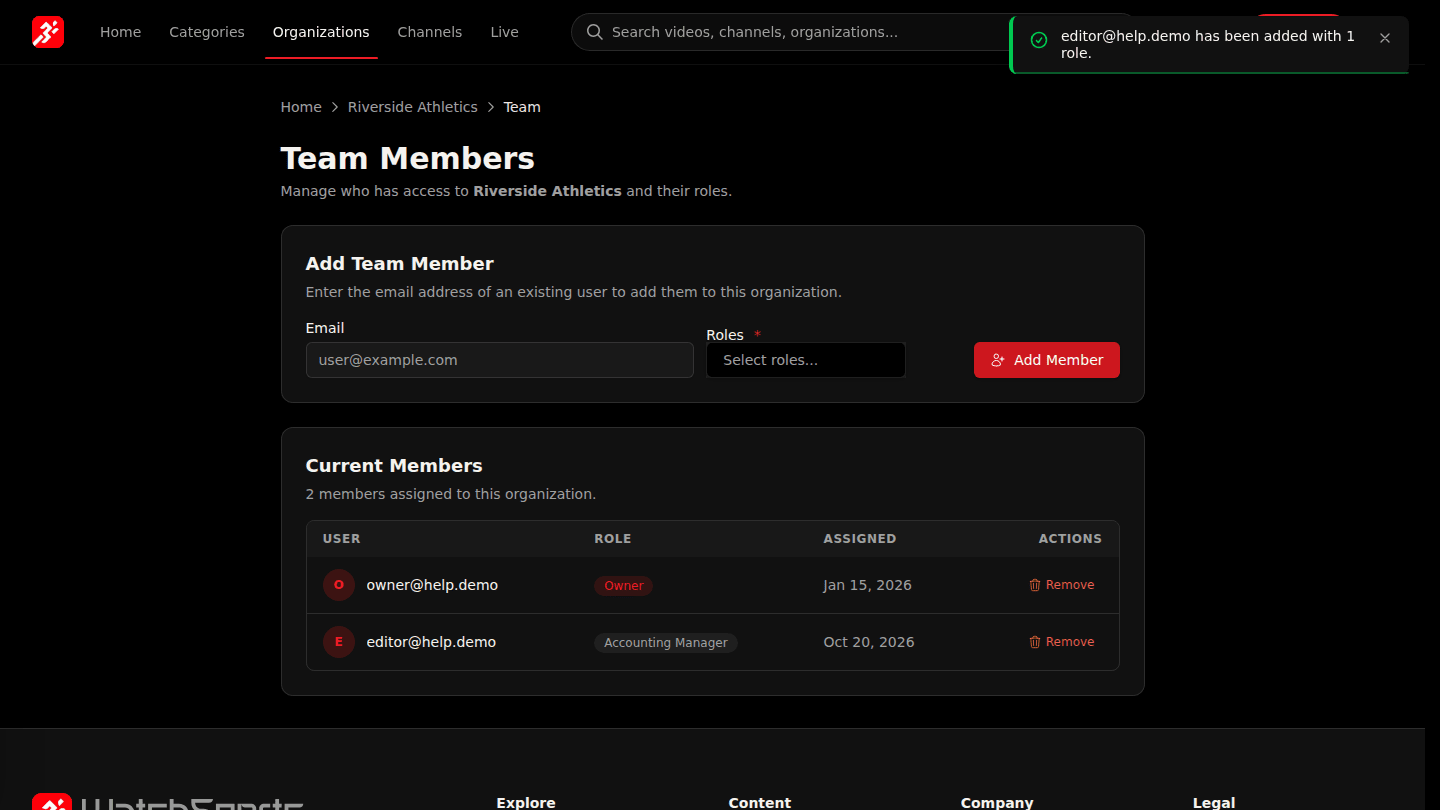
Choose Add Member. They appear under Current Members; Remove takes their access away.
You should see
has been added in the confirmation and the person under Current Members.
How it works
| Role | Can |
|---|---|
| Owner | Everything, including team, finances and retiring content |
| Accounting Manager | Offers, discounts, bounties, finances |
| Channel Manager | Create and edit channels, upload, schedule streams |
| Video Editor | Upload and edit videos, go live |
| Community Manager | Moderate comments and chat |
| Analytics Specialist | Read analytics |